
Yes, you can run IPTV on a Sony Bravia: install a TV-compatible IPTV player straight from Google Play on any Google TV or Android TV Bravia, paste in your M3U or Xtream credentials, and start streaming. That whole process takes about a minute once you know your TV’s software generation.
Here’s the checklist before you touch a remote:
- Confirm your Bravia runs Google TV (2021 and later) or legacy Android TV (2018 to 2020) — it changes which apps show up.
- Open Apps → Play Store and install a recommended IPTV player.
- Add your playlist URL or Xtream server, username, and password.
- Play a channel and confirm picture and sound before you configure anything else.
Pro Tip: Always try the Play Store first. Sideloading works, but it’s a fallback for when your specific app isn’t listed, not a default routine.
Key Takeaways
Getting IPTV running reliably on a Sony Bravia depends on matching your app choice to your TV’s generation and testing your playlist before adding any extra hardware.
| Point | Details |
|---|---|
| Check your TV generation first | Google TV (2021+) supports more current apps; legacy Android TV (2018 to 2020) may need sideloading. |
| Install from Play Store when possible | Store apps auto-update and carry less security risk than sideloaded APKs. |
| Test playlists before buying hardware | Many modern Bravias handle HD and 4K IPTV fine once decoder settings are tuned. |
| Set decoder to hardware mode | Switching to Hardware (HW+) in player settings fixes most 4K stuttering issues. |
| Digitalwebb01 offers a ready-made path | EPG-ready playlists and anti-freeze streaming remove most of the manual setup work. |
Table of Contents
- How to Install an IPTV App on Sony Bravia
- Adding Your M3U or Xtream Playlist and Setting Up the EPG
- Which IPTV Player Should You Choose on Bravia?
- Fixing Buffering, No Audio, and App Availability Problems
- What to Know About Security and Legality Before Streaming
- What Actually Works vs. What Sounds Good on Paper
- Skip the Setup Work With a Ready-Made IPTV Package
- Where to Check Model-Specific Details
- Sources
How to Install an IPTV App on Sony Bravia
The install path splits cleanly by generation. Bravias from 2021 onward run Google TV, with a modern Play Store and better hardware for decoding demanding streams. Sets from 2018 to 2020 run an older Android TV storefront that carries fewer up-to-date apps and generally weaker silicon, according to a detailed breakdown of the two platforms. Check Settings → About to see which one you have before you start.
Installing from Play Store (the fast path):
- From the home screen, open Apps, then launch the Google Play Store.
- Search for your chosen IPTV player by name.
- Select Install, then open the app once it finishes.
- Accept the permissions it requests (network and storage are normal; anything asking for contacts or camera access is a red flag).
Sideloading (when the app isn’t listed):
- Go to Settings → System → About, then tap the build number seven times to unlock Developer Options.
- Install the Downloader app from Play Store, then enable “Apps from unknown sources” for it.
- Use Downloader’s URL field to fetch the APK file and install it directly on the TV.
Sideloading via Downloader is the standard workaround when an app never made it to your TV’s store listing, but it comes with a catch: sideloaded apps don’t auto-update, so you’re on the hook for checking developer release notes and reinstalling new versions yourself.
Pro Tip: Test a free or trial M3U playlist before you sideload anything or pay for a premium player. It takes two minutes and saves you from installing an app you’ll delete anyway.
Adding Your M3U or Xtream Playlist and Setting Up the EPG
Most IPTV players on Bravia give you two ways in: paste an M3U playlist URL (some let you upload a file), or enter Xtream Codes credentials, meaning your server address, username, and password. Both live under a menu usually labeled Settings → Playlists or Add Playlist, with a separate tab for Xtream portal fields.
- Open the player’s settings menu and select Add Playlist or Xtream Login.
- Paste your M3U URL, or fill in the server, username, and password fields for Xtream.
- Save, then let the app load and index the channel list, which can take a minute or two on larger playlists.
- Point the app to your provider’s XMLTV URL for the EPG, or toggle automatic EPG detection if the player supports it.
- Confirm channel ID mapping lines up. Some players auto-match channel numbers to guide data; others need manual pairing.
A quick reference for what goes where:
- M3U URL field: paste your playlist link exactly as your provider sent it, no extra spaces.
- Xtream fields: server, username, password, sometimes a separate EPG URL field.
- EPG settings: look for “XMLTV URL” or “Auto EPG” toggles inside player preferences.
Pro Tip: Import a small test playlist first, confirm the guide data lines up with the right channels, then add your full multi-channel list. Fixing EPG mismatches on 20 channels beats fixing them on 4,000.
Before doing any deeper configuration, tune to a handful of live channels and check that resolution and guide data both look right. That five-minute check catches most problems early.
Which IPTV Player Should You Choose on Bravia?
You don’t need to chase a specific brand name. What matters is whether the app handles a few practical things well on your particular Bravia model.
- D-pad remote support: the interface should navigate cleanly with your Bravia remote, not just touch or mouse input.
- M3U and Xtream input: both playlist formats should be supported natively.
- EPG support: look for XMLTV compatibility so your guide populates automatically.
- Hardware decoding: HEVC (H.265) support matters if your provider streams in 4K.
- Chromecast support: useful as a fallback if the app misbehaves.
- Catchup or recording: only relevant if your provider offers it and you actually want it.
Stick to Play Store listings where you can. APKs from random websites carry real risk, and there’s no update mechanism watching your back. Modern Google TV Bravias tend to show newer app versions in the store; older Android TV models sometimes need the sideload route just to get a current build, as the same generational comparison notes.
Pro Tip: If two apps look identical on paper, pick the one with more recent Play Store updates. An app that hasn’t shipped an update in two years is a bad bet on a fast-moving Android TV platform.
Fixing Buffering, No Audio, and App Availability Problems
Most playback complaints trace back to one of four things: bandwidth, decoder settings, app availability, or a TV power-saving mode quietly working against you.
Network checklist:
- 1080p streams generally need a stable connection well above basic broadband minimums; test your actual throughput, not your plan’s advertised speed.
- 4K HEVC streams are far less forgiving of Wi-Fi interference. Wired Ethernet is the more reliable choice if your Bravia has a port.
- Run a speed test at the TV itself, not just on your phone in another room.
Playback fixes:
- Set the player’s decoder to Hardware (HW+) or the equivalent option in its settings. This offloads decoding to the TV’s media processor instead of software, which is usually the fix for stuttering 4K streams.
- If the app has an adjustable buffer size, increasing it slightly can smooth out momentary drops without adding much delay.
App not showing in Play Store? Confirm your TV generation first, since older Android TV Bravias may simply not get the current build. Casting from a phone is a solid fallback here. Every Google TV Bravia and nearly every Android TV Bravia has Chromecast built in, so the same source on Bravia app behavior points out that casting hands the stream directly to the TV while your phone acts as a remote. Sideloading through Downloader remains the last resort.
Empty EPG? Check your Bravia’s energy-saving or Eco mode. Aggressive power settings can quietly stop background network tasks, including EPG refresh, which leaves your guide blank even though playback works fine.
Newer Bravias from 2021 onward tend to run IPTV apps smoothly at 1080p and often at 4K when the codec and color space line up, while older sets show slower app launches and choppier EPG scrolling. That’s a hardware ceiling, not a setup mistake.
Pro Tip: Test your playlist directly on the TV before you buy an external streaming stick. A lot of modern Bravia sets handle IPTV just fine once the decoder and buffer settings are dialed in.
What to Know About Security and Legality Before Streaming
Not every IPTV playlist is legitimate, and that matters more than most setup guides admit. Unlicensed streams can carry real legal risk depending on where you live, so confirm your provider’s licensing and terms for your country before you commit to a subscription.
Content availability and legal standing vary by market. What’s fine to stream in one country may not be in another, so check local rules rather than assuming a provider’s marketing claims apply everywhere.
On the security side:
- Favor Play Store listings over APKs pulled from random forums or file-sharing sites.
- Check what permissions an app actually requests. A player only needs network and storage access, not contacts, camera, or location.
- Use strong, unique credentials for any account tied to billing.
One clarification worth making here: Sony’s own Bravia Core service is a Sony-controlled content platform, not an IPTV gateway. It advertises high-bitrate delivery up to roughly 80 Mbps for select titles, according to Pocket-lint’s coverage, but it’s exclusive to the Sony ecosystem and isn’t something you configure with third-party playlists.
What Actually Works vs. What Sounds Good on Paper
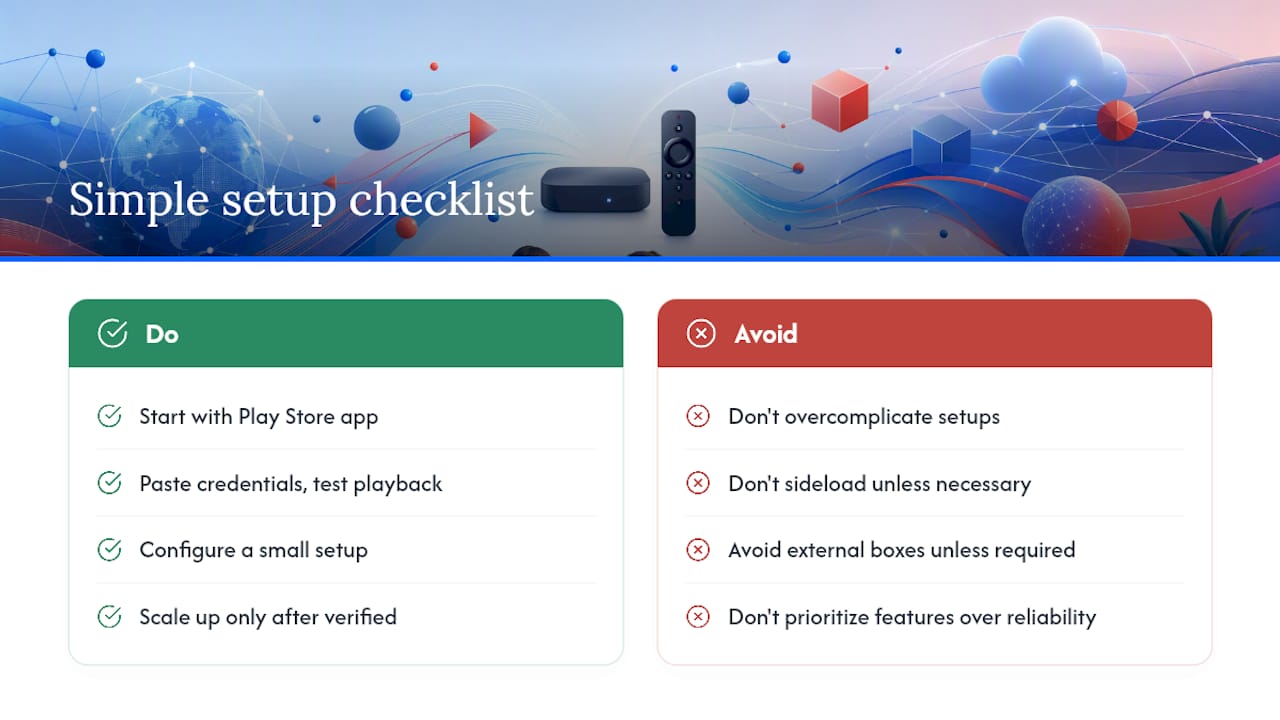
Most setup guides overcomplicate this. The simplest configuration you can explain in one minute, Play Store app, paste credentials, play, beats an elaborate multi-app, multi-device setup nine times out of ten. Start there. Only reach for sideloading or an external streaming box when your specific Bravia model genuinely can’t do the job.
If you want recording or multi-playlist support, weigh that against reliability. A feature-heavy app that crashes weekly isn’t a good trade for catchup TV you rarely use. Configure something small, verify it plays cleanly, then scale up.
Skip the Setup Work With a Ready-Made IPTV Package
If you’d rather not spend an evening testing playlists, mapping EPG data, and tuning decoder settings, Digitalwebb01 hands you a configuration that’s already built for Sony Bravia hardware. Subscribers get access to over 45,000 live and sports channels with EPG-ready streams, anti-freeze technology tuned to prevent the buffering issues covered above, and support seven days a week if something needs adjusting.
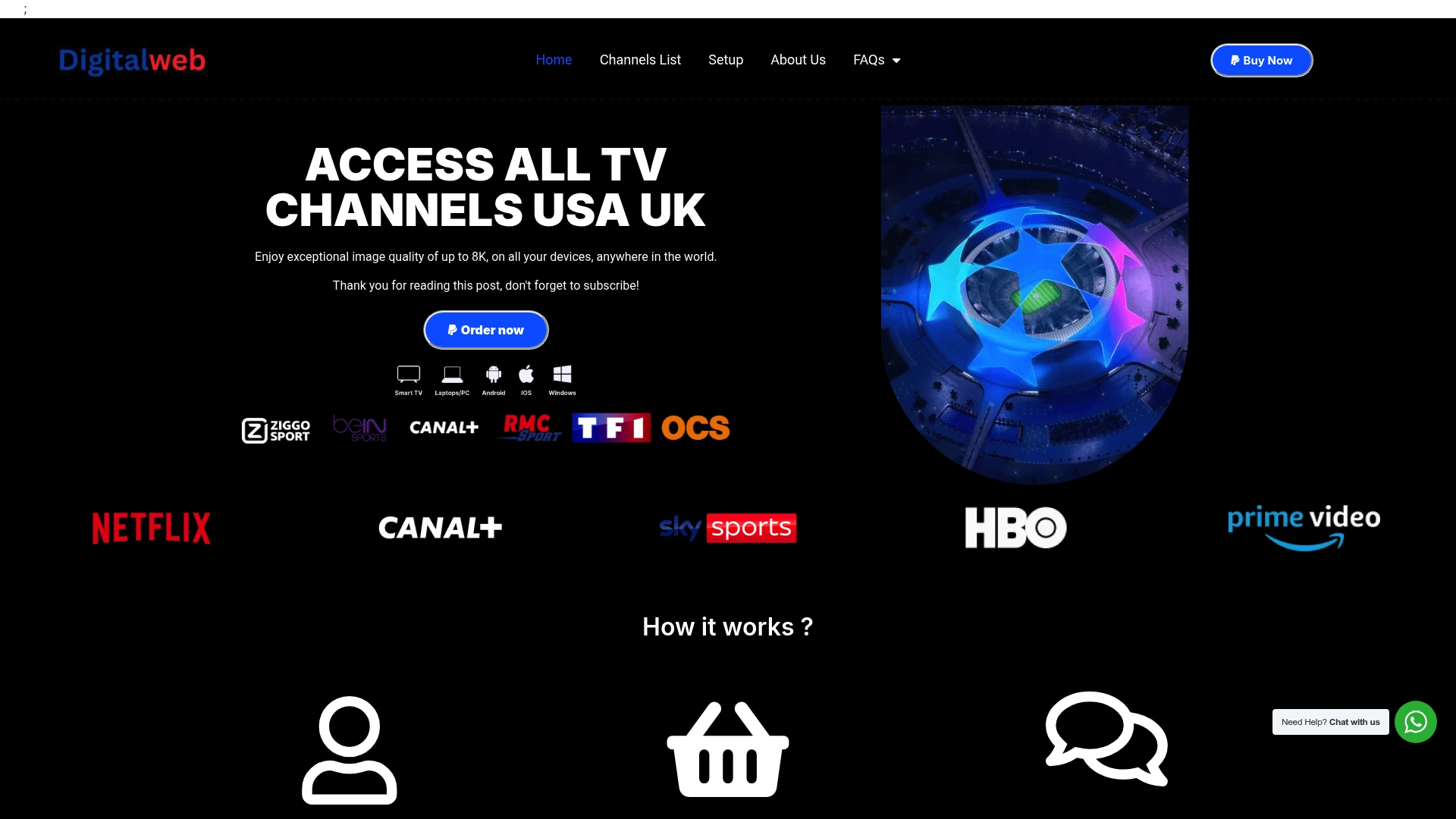
The channel list shows exactly what’s included before you commit, and the setup page walks through device-specific configuration files so you’re not guessing at Xtream fields or XMLTV URLs. There’s a refund policy in place if the service doesn’t fit your setup, so testing it costs you nothing but a few minutes. Head to the setup page, pick your Bravia generation, and get your playlist running today.
Where to Check Model-Specific Details
- The Google TV vs Android TV breakdown covers generational differences and sideload steps in more depth.
- Sony’s Bravia Core support page clarifies what that service does and doesn’t include.
- The Smart IPTV Play Store listing shows current app details and confirms it requires your own playlist.
This article is general information, not a substitute for advice from a qualified lawyer. Consult a qualified legal professional about your own circumstances before acting on anything here.
Sources
- IPTV On Sony Bravia 2026: Google TV, Android TV Older Models, And The App Library Truth | OttTV
- Sony Electronics – Televisions, Audio, Cameras, Mobile, Video Cameras | Sony Electronics
- I bought a TV to get this secret streaming service