
The fastest, most reliable way to watch IPTV on a PC is a native Windows IPTV player, or VLC if you just want to test a stream in thirty seconds. Neither one comes with channels. You still need an authorized M3U/M3U8 playlist or Xtream login from your provider before any of this works.
Four quick picks:
- VLC — best for a fast, no-install test of a single stream URL.
- Onyx — best for Windows users who want native playback and nothing phoning home.
- MyIPTV Player / IPTV Smarters style apps — best for Xtream logins with automatic EPG.
- Kodi — best for people who already run a media center and want IPTV folded in.
Key Takeaways
Native Windows IPTV players outperform browser-based apps on speed and privacy, but every player still needs an authorized playlist or Xtream login to show a single channel.
| Point | Details |
|---|---|
| Pick by use case | Use VLC to test a stream fast, a native app like Onyx for daily viewing. |
| Xtream beats plain M3U | Xtream logins auto-load EPG and VOD categories; M3U often needs a separate XMLTV feed. |
| Native beats web-wrapper | Libmpv-based players handle large channel lists and hardware acceleration more reliably. |
| Troubleshoot in order | Test in VLC first, then check firewall, hardware acceleration, and audio track settings. |
| Bring your own source | Digitalwebb01 supplies authorized channel lists and setup help so playback works from the first load. |
Official Downloads and Project Pages for Setup
- VLC download for Windows — official installer.
- Guts444/Onyx — project page and documentation.
- IPTV player on Microsoft Store — store listing for Windows 10/11.
Table of Contents
- Iptv On PC: Which Player Should You Pick First?
- What Do You Need Before You Start?
- How Do You Load a Playlist Into VLC?
- Xtream API or M3U: Which One Should You Use?
- Native Players vs. Web Apps: What Actually Performs Better?
- How Do You Fix Common IPTV Playback Problems?
- Get an Authorized Playlist and Skip the Guesswork
- Frequently Asked Questions
- Sources
Iptv On PC: Which Player Should You Pick First?
Picking the right player comes down to what you actually want from your setup: quick playback, a full program guide, or a lightweight app that stays off your data. Here’s the shortlist, ranked by what each one does best.
- VLC — free, open source, and already on most PCs. Best for testing whether a playlist URL even works before committing to anything fancier.
- MyIPTV Player — a Microsoft Store app built for Xtream and M3U sources with EPG built in. Best for someone who wants a clean interface without touching a config file.
- IPTV Smarters-style store apps — freemium apps with categorized VOD and series libraries. Best for households that want a TV-app feel with remote or mouse navigation.
- Onyx — a local-first Windows player with native libmpv playback and no cloud backend. Best for privacy-conscious users who want everything cached on the PC itself.
- Kodi — the veteran media center with IPTV add-ons. Best for people who already use it for local media and want live TV in the same shell.
All five run fine on Windows 10 or 11, and none of them ship with a single channel. You still have to bring your own legal source.
What Do You Need Before You Start?
Before you open any player, get these ready:
- An authorized M3U or M3U8 playlist URL from your IPTV provider.
- Xtream credentials if your provider supports the API: a server address, username, and password.
- An XMLTV/EPG URL, if your provider issues one separately from the playlist.
- Windows 10 or 11, ideally with the latest Visual C++ Redistributable installed, since some players depend on it for smooth video decoding.
- A PC with a decent GPU. Most modern Intel and AMD chips handle 1080p fine, but 4K streams lean hard on hardware decoding, so check that your graphics driver is current.
Pro Tip: If your provider offers both a plain M3U link and Xtream API credentials, take the Xtream login. It pulls VOD categories and refreshes the EPG automatically instead of leaving you to reload a guide file by hand.
How Do You Load a Playlist Into VLC?
VLC is the quickest way to confirm a stream is alive, and it’s the first stop for troubleshooting later. VLC’s Windows download page gets you the installer in under a minute.
- Open VLC and go to Media > Open Network Stream.
- Paste your M3U/M3U8 URL into the network URL field and click Play.
If nothing loads, double check the URL for typos, and confirm your firewall isn’t blocking VLC’s outbound connection. - To save it as a playlist, go to Media > Save Playlist to File once the stream is confirmed working.
That covers single-stream testing. For a full channel list with EPG, a native Windows app handles it better.
- Install a Microsoft Store player like MyIPTV Player or a similar native app such as Onyx.
- In the setup screen, choose Xtream Login and enter your server, username, and password. If you only have an M3U link, choose the M3U URL option instead.
- Add your XMLTV/EPG URL in Settings > EPG, then hit refresh. Most native players auto-match channel names to the guide within a minute.
Screenshot moment: the EPG field usually sits right below the playlist URL field in setup, easy to miss on a first pass. - If channels load but the guide stays blank, try manual matching. Most apps let you pair a channel name to its EPG entry by hand.
Local .m3u files load through Open File; playlist URLs load through Open Network Stream or the app’s dedicated URL field. Know which one you have before you start clicking around.
Xtream API or M3U: Which One Should You Use?
Xtream API credentials and static M3U links both get you watching, but they aren’t equivalent under the hood. Xtream (server, username, password) authenticates against the provider’s server directly, which means EPG data, VOD library structure, and series metadata usually load automatically. A plain M3U link is just a list of stream URLs. It works, but the EPG typically needs a separate XMLTV feed and periodic manual refreshing.
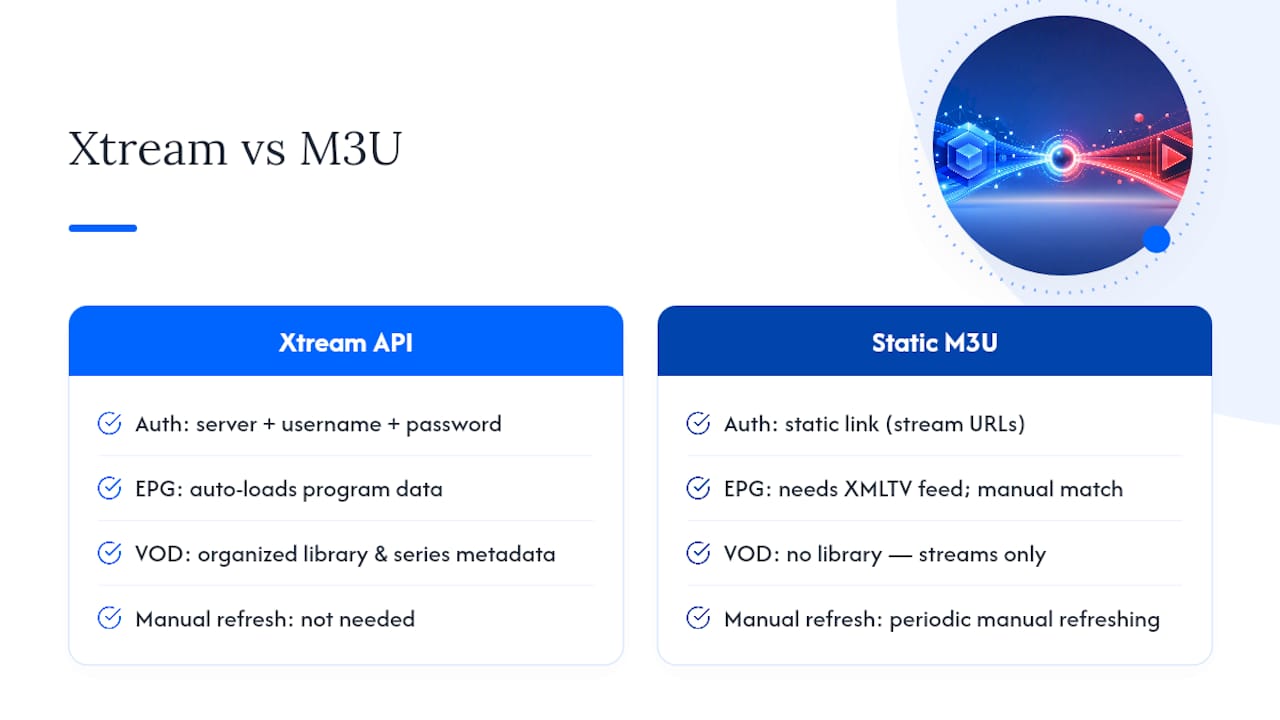
XMLTV is the file format behind most program guides. Good players detect channel attributes in the M3U file and auto-match them to the XMLTV feed; when that fails, you fall back to manual matching, pairing each channel to its guide entry one at a time.
Pro Tip: Ask your provider for Xtream credentials over a bare M3U link whenever it’s offered. You skip the manual EPG babysitting entirely, and VOD/series categories show up already organized.
Native Players vs. Web Apps: What Actually Performs Better?
Native Windows IPTV players, the kind built on libmpv or mpv, decode video locally and tend to handle large channel lists and hardware acceleration more reliably than browser-based or web-wrapper apps. That’s not a small distinction if you’re running a 4K stream on modest hardware.

Privacy works the same way. Local-first players like Onyx store your playlist and credentials on the PC and cache EPG data locally, so nothing gets shipped to a third-party server just to load your guide. Web-wrapper apps and cloud-backed tools, by contrast, often route your login and playlist data through their own servers before it reaches your screen.
Look for these signals in an app’s description before installing:
- Mentions of libmpv or mpv as the playback engine.
- Explicit “local caching” or “offline EPG” language.
- No requirement to create a cloud account just to load your own playlist.
Pro Tip: If a “free” IPTV app asks you to sign up with an email before it’ll even open your M3U file, that’s a decent hint it’s routing your data somewhere you can’t see.
How Do You Fix Common IPTV Playback Problems?
Most playback issues on Windows come down to five things:
- No playback at all: test the exact same URL in VLC first. If VLC won’t play it either, the problem is the stream or your connection, not the app.
- Firewall or antivirus blocking traffic: temporarily whitelist the player and retest.
- Stuttering or buffering: enable hardware acceleration in the player’s settings, or drop stream quality if your provider allows multiple bitrates. Ask your provider about concurrent stream limits too.
- Audio but no video (black screen): toggle hardware decoding off and on, or switch the video renderer in settings.
- Video but no audio, or wrong language track: check the audio track dropdown. Some streams carry multiple audio tracks and default to the wrong one.
If a specific stream still won’t behave, handing it off to VLC or mpv as an external player is a solid workaround for codec issues that trip up other apps.
A Quick Note on Choosing Between Them
I lean on native players day to day. Something like Onyx just handles large lists and EPG data better than a browser-based app ever will. VLC stays installed anyway, purely because it’s the fastest way to sanity-check a stream before troubleshooting anything else. Store apps win on convenience; local-first players win on speed and privacy. Pick based on which one you’ll actually miss.
Get an Authorized Playlist and Skip the Guesswork
Every player on this list is exactly that: a player. None of them include channels, and that’s the step most people get stuck on. Digitalwebb01 supplies authorized channel lists built to load straight into VLC, Onyx, or a Microsoft Store app, so you’re not hunting for a working M3U link on a forum somewhere.
Subscribers get access to a large number of live and sports channels plus many movies and series, in HD up through 8K, with anti-freeze streaming and high uptime baked in. If you’d rather not fumble with Xtream fields and EPG matching alone, Digitalwebb01’s setup page walks through it step by step, and support is available seven days a week if something doesn’t load right the first time. Grab a channel list, pick a player from the shortlist above, and you’ll be watching inside a few minutes.
Frequently Asked Questions
Can I watch IPTV on a PC without any special software?
No. You need a player like VLC or a native Windows IPTV app to open an M3U playlist or Xtream login. Browsers alone won’t decode most IPTV streams properly.
Does VLC work well for daily IPTV viewing on Windows?
VLC handles single streams fine and is great for testing, but it lacks a built-in program guide and channel organization that native players like Onyx or Kodi offer for daily use.
What’s the difference between watching IPTV on PC versus Xbox?
An Xbox Series X IPTV app typically relies on a Microsoft Store player controlled with a remote or controller, while a PC gives you more player choices, mouse and keyboard control, and easier access to config files for troubleshooting.
Do I need an Xtream login, or is an M3U link enough?
Either works, but Xtream logins automate EPG updates and VOD categorization. A plain M3U link usually needs a separate XMLTV feed that you refresh manually.
Why does my stream stutter on a laptop but not a desktop?
Laptops often rely on integrated graphics, which struggle more with 4K decoding. Enabling hardware acceleration in the player’s settings usually helps close that gap.
Sources
- Guts444/Onyx