

Yes, IPTV runs on iPhone. You just need the right player app, since iOS doesn’t play IPTV streams natively the way it plays a video file. Third-party clients handle the decoding, and Apple’s AirPlay sends the picture to your TV through Apple TV when you want it on the big screen.
Here’s the short version before we get into specifics:
- Want a proper TV guide? IPTVX handles XMLTV/EPG data well, including compressed guide files.
- Need the widest format support? Perfect IPTV covers M3U, XSPF, and Xtream Codes API in one app.
- Want dead-simple playback with AirPlay built in? IPTV Player Live keeps things straightforward.
- Prefer a free, open-source fallback? VLC for Mobile plays almost anything you throw at it.
One quick note before you install anything: these apps are players, not content providers. You still need a legal IPTV subscription or your own legitimate stream source, from a service like DigitalWeb, to have something to watch.
Key Takeaways
IPTV runs reliably on iPhone when you match your provider’s playlist and EPG format to a player that explicitly supports it, then use direct AirPlay rather than mirroring for the best living-room experience.
| Point | Details |
|---|---|
| Pick the right player | Match EPG and playlist format (M3U, XSPF, Xtream API) to the app before installing. |
| Verify EPG format first | Open the EPG URL in a browser to confirm it loads before blaming the app. |
| Use direct AirPlay | Stream directly from the video player rather than mirroring for smoother Apple TV playback. |
| Troubleshoot in order | Check network, then app, then provider server before assuming your iPhone is at fault. |
| Consider a managed option | DigitalWeb offers 45,000+ channels with guided setup for iPhone viewers who want to skip DIY configuration. |
Table of Contents
- Comparing the Best IPTV Apps for iPhone
- How to Add an M3U Playlist or Xtream API Credentials on iPhone
- What Actually Matters When Choosing an IPTV Player
- Streaming IPTV From iPhone to Apple TV With AirPlay
- Fixing Buffering and Playback Problems
- Is It Legal and Safe to Use IPTV Apps on iPhone?
- Mini-Reviews: IPTVX, Perfect IPTV, IPTV Player Live, and VLC
- Why DigitalWeb Works Well for iPhone Viewers
- A Setup Trick That Saves You From EPG Headaches
- Get IPTV Running on Your iPhone With DigitalWeb
- Frequently Asked Questions
- Sources
Comparing the Best IPTV Apps for iPhone
Picking a player comes down to five things: whether it reads your provider’s TV guide data, which playlist formats it accepts, whether it talks to Apple TV, what it costs, and how much fiddling the setup takes.

| App | EPG Support | Playlist Formats | AirPlay | Price Model | Background/PiP |
|---|---|---|---|---|---|
| IPTVX | Auto EPG + manual XMLTV/GZIP URL | M3U, Xtream API | Yes | Free with in-app purchases | Limited PiP |
| Perfect IPTV | XMLTV, GZIP | M3U, XSPF, Xtream Codes API | Yes | Free with in-app purchases | Background audio |
| IPTV Player Live | Standard EPG | M3U, Xtream | Yes, plus Cast | Free with in-app purchases | Full PiP |
| VLC for Mobile | None built-in | M3U (basic) | No native AirPlay button | Free, open-source | Basic background playback |
Matching goals to apps:
- Best EPG handling: IPTVX, thanks to its Auto EPG detection that finds guide data on your server without manual entry.
- Best format compatibility: Perfect IPTV, since it explicitly supports M3U, XSPF, and Xtream Codes API alongside XMLTV guide files.
- Easiest AirPlay/Cast experience: IPTV Player Live, which lists PiP and AirPlay support right in its App Store description.
- Best free/open-source option: VLC for Mobile, useful when you just need to test a stream URL with no account setup.
Pro Tip: Before you commit to a paid tier in any of these apps, check your provider’s playlist and EPG format against the app’s App Store listing. A mismatch between XMLTV and a proprietary EPG format is the single most common reason channel guides show up blank.
How to Add an M3U Playlist or Xtream API Credentials on iPhone
Getting live TV running on your iPhone takes about ten minutes once you have the right information in hand. Here’s the order that avoids most of the headaches people run into.
Before you start, gather:
- Your M3U playlist URL, or your Xtream API username, password, and server address
- A separate EPG URL if your provider issues one separately from the playlist
- A stable Wi-Fi connection (cellular works too, but initial setup is easier on Wi-Fi)
Setup steps:
- Download your chosen player from the App Store (IPTVX, Perfect IPTV, or IPTV Player Live all work well for this).
- Open the app and find the “Add Playlist” or “Add Provider” screen, usually front and center on first launch.
- Choose your input type. If your provider gave you a single M3U link, paste it into the playlist URL field. If you have Xtream Codes credentials instead, switch to that tab and enter your server address, username, and password.
- Look for an EPG or TV Guide settings screen. If the app supports Auto EPG, it will scan your playlist for embedded guide data automatically. If not, paste in the EPG URL your provider supplied, including GZIP-compressed files if that’s the format offered.
- Save the playlist and let the app load the channel list. This can take anywhere from a few seconds to a couple of minutes depending on how many channels are in the list.
- Tap a channel to confirm playback starts and the picture is stable.
A few things worth capturing on your screen while you do this: the add-playlist screen (so you can retype credentials correctly if something goes wrong), the EPG configuration screen (so you know exactly what URL you entered), and the loaded channel list (to confirm the count matches what your provider promised).
Pro Tip: Use auto-EPG discovery whenever the app offers it. Manually pasting XMLTV URLs works fine, but auto-detection saves you from typing a long GZIP-compressed link by hand, and it’s less prone to a typo breaking your entire guide.
If your channel list loads but the guide is empty, that almost always means the EPG format your provider sends doesn’t match what you entered. Double-check whether they’re issuing standard XMLTV or something else, since Perfect IPTV’s own listing is explicit about supporting GZIP-compressed XMLTV specifically, and not every player handles that compression the same way.
What Actually Matters When Choosing an IPTV Player
Not every feature on an app’s marketing page deserves your attention. Some are essential; others are nice bonuses that only matter for specific viewing habits.
Must-have features:
- EPG support with XMLTV and GZIP compatibility, so your TV guide actually populates
- M3U, XSPF, or Xtream Codes API support, since these are the three formats providers issue
- Apple HLS compatibility, which is the streaming protocol most modern IPTV services rely on
Nice-to-have features:
- Picture-in-Picture, useful if you like watching a game while texting or browsing
- Background audio playback, handy for sports commentary or news while doing other things
- Catch-up TV or recording, for anyone who misses a lot of live airings
- Dolby Audio or HDR support, which matters more if you’re watching on Apple TV through AirPlay than on the phone’s own screen
Match your priorities to your habits. If you mostly watch live news and don’t care about a guide, almost any player works. If you’re a sports fan juggling multiple matches across channels, EPG accuracy and quick channel switching matter more than fancy playback extras. If you’re routing everything through Apple TV for the living room, prioritize apps with reliable AirPlay support over ones with flashy on-phone features you’ll rarely use.
One more consideration that often gets skipped: if your IPTV source requires connecting through a private or corporate network, Apple’s own documentation on per-app VPN configuration is worth reading before you assume a VPN app will just work out of the box. Per-app VPN routes only that player’s traffic through the tunnel, leaving the rest of your phone unaffected.
Streaming IPTV From iPhone to Apple TV With AirPlay
There are two different things people mean when they say “AirPlay to Apple TV,” and mixing them up causes most of the confusion.
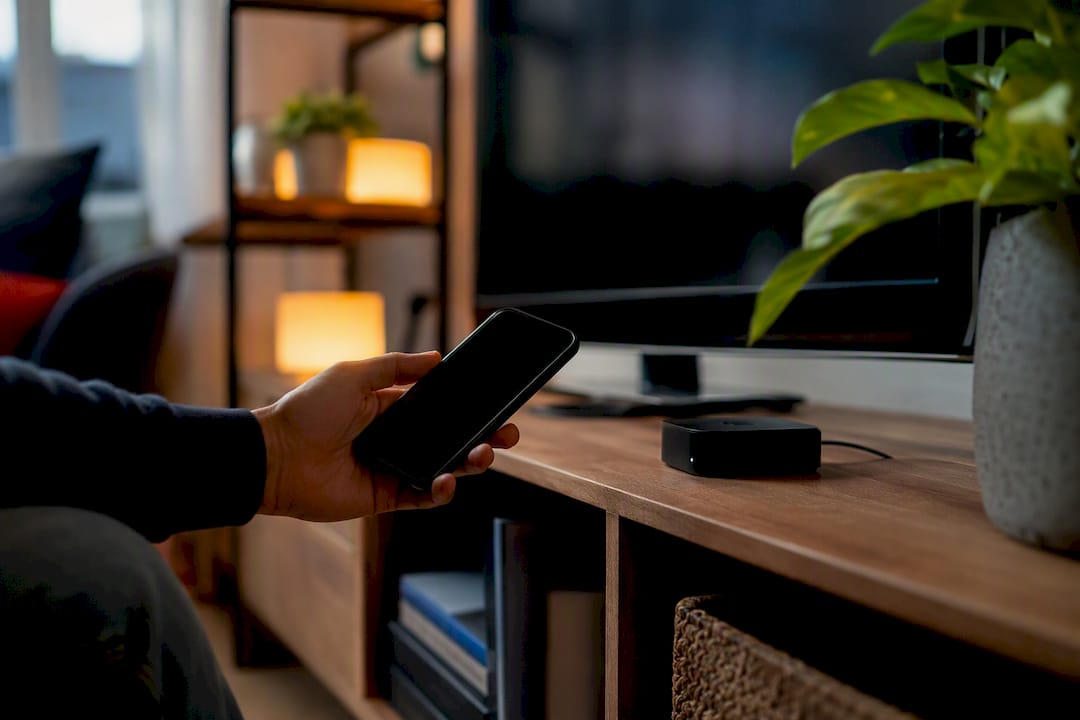
Screen mirroring copies everything on your iPhone screen, including notifications and app switches, onto the TV. Direct streaming sends just the video feed to the Apple TV while your phone stays free for other things, which is almost always the better choice for watching IPTV.
To mirror your screen:
- Open Control Center on your iPhone.
- Tap “Screen Mirroring.”
- Select your Apple TV from the list of available devices.
- Open your IPTV app and start playback.
To stream directly (recommended):
- Open your IPTV player and start playing a channel.
- Look for the AirPlay icon inside the video player itself.
- Select your Apple TV as the output.
- Your phone screen goes back to normal while the video keeps playing on the TV.
A few practical notes: Apple TV 4K handles AirPlay best when it’s connected via Ethernet rather than Wi-Fi, especially for longer viewing sessions. AirPlay can also work peer-to-peer when your iPhone and Apple TV are close together but not on the same Wi-Fi network, using Bluetooth for discovery and a temporary wireless link for the actual stream. If you’re sharing an Apple TV in a common area, turning on “Require Device Verification” in AirPlay settings keeps random nearby devices from connecting uninvited.
Fixing Buffering and Playback Problems
Most IPTV playback issues on iPhone trace back to one of five causes, and working through them in order usually finds the culprit fast.
Run through this checklist first:
- Test your actual internet speed, not just whether Wi-Fi shows connected
- Switch between Wi-Fi and mobile data to isolate whether the network or the app is the problem
- Try a different channel or a different app entirely to rule out a dead stream on the provider’s end
- Confirm your playlist URL and Xtream server address are still reachable and haven’t expired
- Clear the app’s cache or reinstall if channel lists look outdated or corrupted
- If you’re running a VPN, disable it temporarily, since some IPTV servers block or throttle VPN traffic
Quick fixes worth trying:
- Switch the app’s streaming protocol setting between HLS and MPEG-DASH if the option exists
- Lower the starting bitrate in the app’s playback settings to reduce initial buffering
- Fully close and reopen the app rather than just backgrounding it
- Reconnect to Wi-Fi manually, which resets a stale connection more reliably than waiting it out
- Switch Apple TV to Ethernet during AirPlay sessions if wireless interference seems to be the issue
Pro Tip: If a problem persists after all of the above, take a screenshot of the exact error message and note the channel name and timestamp before contacting your provider or the app developer. Vague reports like “it’s buffering” get much slower support responses than specific ones.
If none of this resolves things and the issue is consistent across every channel and every app, the problem usually sits with your internet connection or your provider’s server, not your iPhone.
Is It Legal and Safe to Use IPTV Apps on iPhone?
IPTV player apps are just clients. They decode and display a stream; they don’t supply the content themselves, and using one legally depends entirely on where your playlist or credentials come from.
Privacy and security checklist:
- Check whether the app’s in-app purchase model unlocks features or is required to function at all
- Review what permissions the app requests, and be cautious of anything asking for more than network access and storage
- Confirm whether your provider or the app stores your Xtream login credentials, and where
- Prefer providers and playlist sources that use HTTPS rather than unencrypted HTTP links
- If your workplace or network requires it, set up a per-app VPN profile rather than routing your entire phone through a VPN
The safest approach is straightforward: subscribe to a legitimate IPTV provider, review their terms of service, and treat any “free” service offering hundreds of premium channels with real skepticism.
Mini-Reviews: IPTVX, Perfect IPTV, IPTV Player Live, and VLC
IPTVX
- Auto EPG detection saves real setup time when your provider includes guide data
- Clean TV Guide tab makes browsing by time slot easy
- Supports manually inserting EPG URLs, including GZIP-compressed files
- Con: PiP support is more limited compared to some competitors
- Best for: viewers who care most about an accurate, low-effort TV guide
Perfect IPTV
- Broadest playlist format support among the group, covering M3U, XSPF, and Xtream Codes API
- Handles a wide range of streaming protocols, including RTSP, RTMP, and Sat-IP
- XMLTV EPG support with GZIP compression handled correctly
- Con: the sheer number of settings can feel like a lot for a first-time user
- Best for: anyone whose provider uses a less common playlist or protocol format
IPTV Player Live
- Full Picture-in-Picture support for multitasking while watching
- AirPlay and Cast both built in for flexible TV output
- Syncs across iPhone, iPad, and Apple TV
- Con: EPG handling is more basic than IPTVX or Perfect IPTV
- Best for: people who prioritize easy screen sharing over deep guide customization
VLC for Mobile
- Completely free with no in-app purchases
- Open-source and widely trusted for playing almost any stream format
- Works well as a quick way to test whether a stream URL is valid
- Con: no built-in EPG and no dedicated AirPlay button in the interface
- Best for: troubleshooting a raw stream URL or as a no-cost backup player
When you’re comparing App Store listings side by side, the detail that separates a smooth setup from a frustrating one usually isn’t the price. It’s whether the app names your exact EPG format on its own product page before you ever hit install.
Why DigitalWeb Works Well for iPhone Viewers
Running your own playlist through a third-party player gives you control, but it also puts the setup work, the format matching, and the troubleshooting on you. DigitalWeb takes a different approach for iPhone users who’d rather skip that part entirely.
- Access to a large selection of live and sports channels, plus many movies and series, all compatible with EPG-enabled players
- Anti-freeze streaming technology built to reduce the buffering issues covered in the troubleshooting section above
- Wide device support across iPhone, iPad, Apple TV, and other major platforms, so AirPlay and direct playback both work out of the box
- Guided setup instructions that walk through the exact playlist and credential entry steps for iPhone
- Technical support available seven days a week for anyone who hits a snag mid-setup
before kickoff.
A Setup Trick That Saves You From EPG Headaches
Here’s one habit that has saved me more troubleshooting time than anything else: before entering any playlist into a player, open the EPG URL directly in a browser first and confirm it actually loads a file instead of an error page.
If your provider’s guide link returns a real XMLTV or GZIP file in the browser, you know the mismatch, if there is one, sits with the player’s settings, not the source. It takes thirty seconds and it rules out the most common cause of an empty TV guide before you’ve wasted time reconfiguring an app that was never the problem.
Get IPTV Running on Your iPhone With DigitalWeb
Skip the manual playlist hunting and format guesswork. DigitalWeb gives iPhone users a subscription that’s already configured to work with EPG-capable players, so you spend your first ten minutes watching TV instead of debugging XMLTV links.
Every subscription includes access to DigitalWeb’s full channel lineup, covering live sports, movies, and international programming in HD through 8K where available. The anti-freeze streaming technology addresses the exact buffering issues covered earlier in this guide, and setup support is available if you’d rather not troubleshoot Xtream credentials alone. If the service isn’t the right fit after you try it, DigitalWeb’s refund policy covers you. Head to the setup page to see exactly how the process works on your iPhone before you subscribe.
Frequently Asked Questions
Can you actually watch IPTV on iPhone without jailbreaking it?
Yes. No jailbreak is needed. Standard App Store apps like IPTVX, Perfect IPTV, and IPTV Player Live handle IPTV playback natively on unmodified iOS devices.
What’s the difference between IPTV and OTT streaming on iPhone?
IPTV traditionally refers to television delivered over managed IP networks, often by an ISP, while OTT streaming runs over the open internet through any connection. Most consumer IPTV apps on iPhone function like OTT clients in practice, since they stream over standard internet connections rather than a closed network.
Do I need Xtream API credentials, or is an M3U link enough?
Either works, depending on what your provider issues. M3U is a single playlist file URL, while Xtream Codes API uses a server address plus username and password, and it typically also pulls EPG data automatically.
Why does my TV guide show up empty even though channels play fine?
This almost always means the EPG format your provider sends doesn’t match what the app expects, commonly a mismatch between plain XMLTV and GZIP-compressed XMLTV. Try the app’s auto-EPG detection first before entering a URL manually.
Can I use IPTV apps on iPad the same way as iPhone?
Yes. IPTVX, Perfect IPTV, and IPTV Player Live all run on iPad with the same setup process, and the larger screen makes browsing the TV guide easier.
Is AirPlay the only way to get IPTV onto my TV from an iPhone?
AirPlay to Apple TV is the most seamless option for iPhone users, but some players also support casting to other smart TV platforms directly, depending on the app.
Sources
- Use AirPlay to stream audio and video to Apple TV 4K
- IPTV Player Live: M3U & Xtream – App Store – Apple
One Response