
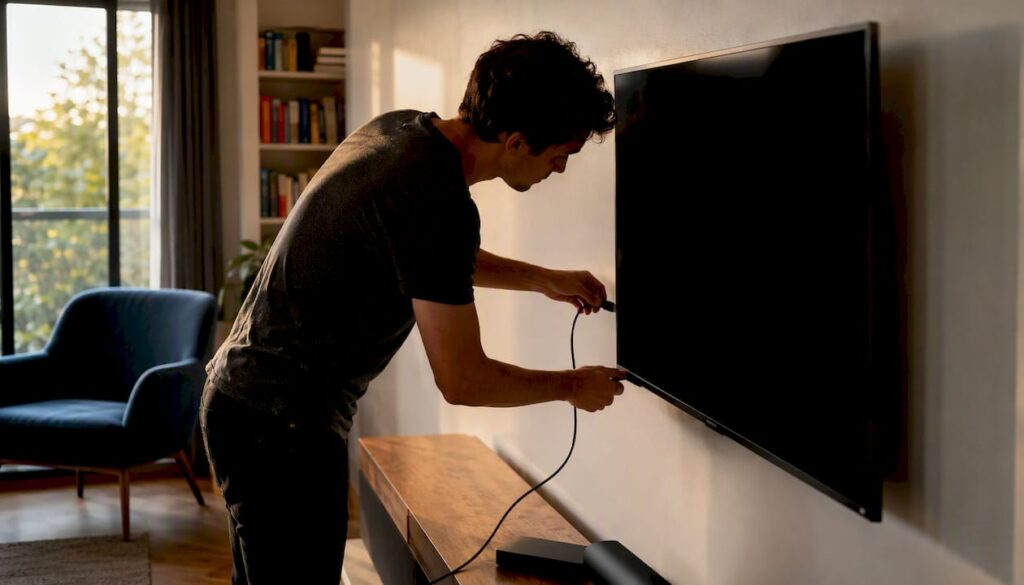
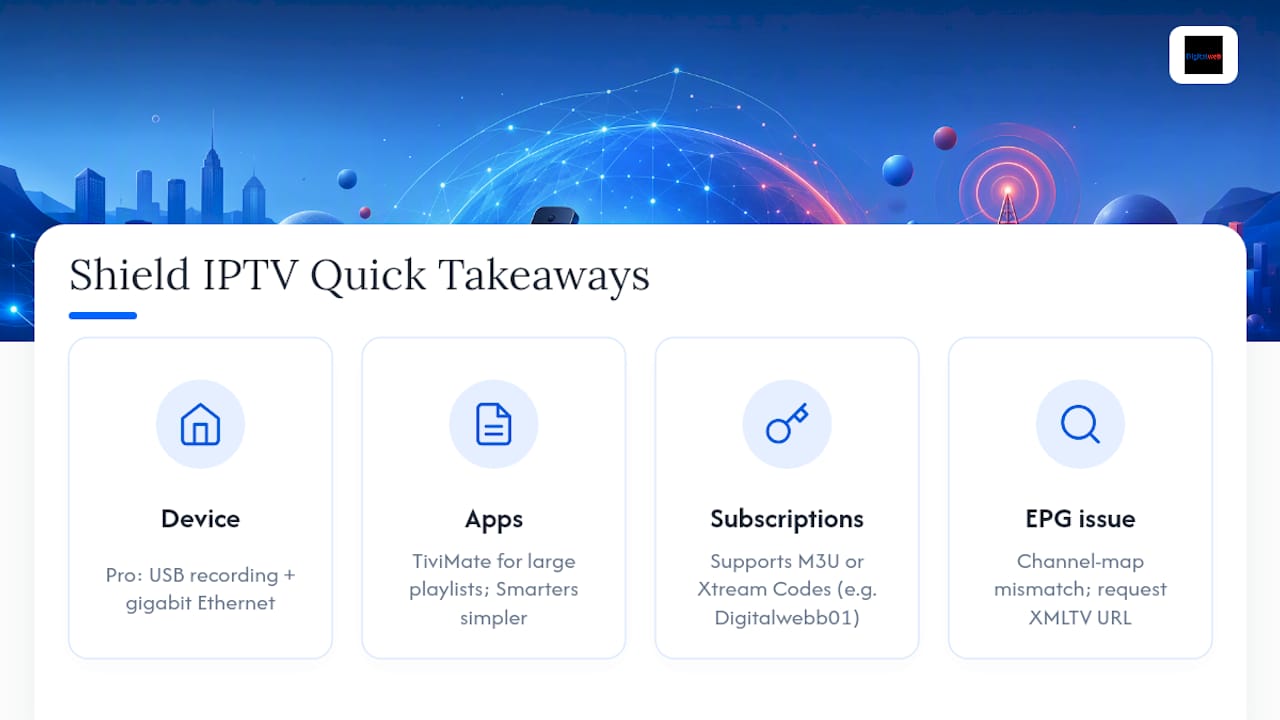
The Nvidia Shield TV is still the best streaming box for IPTV in 2026, and the reason comes down to two things: raw hardware and a platform that lets serious apps actually do their job. The Tegra X1+ chip handles fast channel switching without stutter, and the Shield Pro adds gigabit Ethernet and USB ports that turn it into a genuine DVR box. If you’re setting up IPTV today, install a Shield-friendly player like TiviMate first and build from there.
Here’s the quick version before the details:
- Best app to try first: TiviMate, hands down, for anyone managing more than a handful of channels.
- Tube vs Pro: Get the Pro if you want USB recording or plan to run a massive playlist; Tube is fine for casual viewing.
- Performance caveat: Even great hardware chokes on a bad internet connection, so wired Ethernet matters more than which app you pick.
Key Takeaways
Nvidia Shield TV remains the strongest Android TV device for IPTV because its Tegra X1+ hardware, gigabit Ethernet on the Pro model, and full Play Store access outperform cheaper streaming boxes on stability and app compatibility.
| Point | Details |
|---|---|
| Choose your app first | TiviMate suits power users with large playlists; IPTV Smarters or Perfect Player suit simpler setups. |
| Pick the right Shield model | Get the Pro for USB recording and gigabit Ethernet; Tube works fine for casual, non-recording use. |
| Wire your network | Ethernet and router QoS settings fix most buffering issues before you touch app settings. |
| Match playlist format to provider | Use M3U, Xtream Codes, or Stalker exactly as your provider issues it, and request an EPG URL if the guide is empty. |
| Subscribe through a transparent provider | Digitalwebb01 pairs Shield-friendly EPG and Xtream Codes support with anti-freeze streaming and high uptime. |
Table of Contents
- Which IPTV Apps Work Best on Nvidia Shield?
- How Do You Install IPTV Apps on Nvidia Shield?
- How Do You Add IPTV Playlists and Set Up EPG?
- What DVR and Catch-Up Features Work on Shield?
- How Do You Get Smooth Playback and Stop Buffering?
- Why Do Channels Buffer or Disappear on Shield?
- How Do You Pick a Trustworthy IPTV Provider?
- What Makes Shield Hardware Suited to IPTV?
- What Do I Actually Think After Running IPTV on a Shield?
- Get a Shield-Ready IPTV Subscription With DigitalWeb
- Frequently Asked Questions
- Sources
Which IPTV Apps Work Best on Nvidia Shield?
Six players show up constantly in Shield IPTV discussions, and each solves a different problem. Knowing which one fits your situation saves you from installing three apps before finding the right one.
TiviMate is the app most serious IPTV users land on eventually. It handles M3U, Xtream Codes, and Stalker portal formats, builds a proper EPG grid, and lets you manage multiple playlists at once. The Play Store listing confirms recording support and multi-playlist management in the premium tier, and its interface is built specifically for D-pad navigation on a big screen rather than a phone screen stretched onto a TV.
IPTV Smarters (IPTV Smarters Pro) is the easier on-ramp. It supports the same major formats, has a friendlier onboarding flow, and works well if you’re setting up a subscription for a family member who doesn’t want to think about buffer sizes or EPG mapping.
IPTVExtreme Pro occupies a similar space to TiviMate but leans free-tier friendly, with fewer premium paywalls for basic functions. It’s a reasonable fallback if you want core features without unlocking anything.
Kodi isn’t a dedicated IPTV app. It’s a full media center that can play IPTV through add-ons, and it’s the right pick if you already use it for local media and want live TV folded into the same interface.
Live Channels (Android TV) is Google’s own app, and it can pull in custom feeds directly into the native Android TV guide. Shield owners on Nvidia’s own forums have discussed adding custom feeds and paid IPTV subscriptions to Live Channels, which is worth trying if you want IPTV sitting inside the same guide as your other apps.
Perfect Player is the veteran of the group. It’s lightweight, supports M3U and Xtream, and has a loyal following among users who want a no-frills player without much visual polish.
| Reader question | What matters | Recommendation |
|---|---|---|
| I manage a huge playlist with hundreds of channels | Multi-playlist support, fast EPG grid, favorites/sorting | TiviMate premium |
| I’m setting this up for someone non-technical | Simple onboarding, minimal settings | IPTV Smarters Pro |
| I want a free option with no recording needs | Xtream/M3U support, no paywall for basics | IPTVExtreme Pro |
| I already run Kodi for local media | Add-on ecosystem, unified library | Kodi |
| I want live TV inside Android TV’s native guide | Custom feed support, integrated guide | Live Channels |
| I want something lightweight and no-nonsense | Basic M3U/Xtream playback | Perfect Player |
A 2026 app testing roundup ranked TiviMate highest for overall feature depth on Shield, while naming XCIPTV and IPTV Smarters as solid free or beginner options for anyone not ready to pay for a premium unlock.
Pro Tip: Install TiviMate and one backup player (Perfect Player or IPTV Smarters) side by side. When a playlist misbehaves in one, you can confirm in seconds whether the problem is the app or the provider.
Sideloading availability varies by region and Play Store account settings, so if TiviMate doesn’t show up in your Shield’s Play Store, you’ll need the sideload method covered next.
How Do You Install IPTV Apps on Nvidia Shield?
Install from the Play Store whenever the app is listed there. Sideload only when it isn’t, and treat sideloading as a security-conscious process, not a shortcut.
Play Store installation:
- Open the Play Store app on your Shield’s home screen.
- Search for the player by name (TiviMate, IPTV Smarters Pro, Perfect Player).
- Select install and accept the permissions it requests, typically storage and network access.
- Open the app and go straight to its “add playlist” or “add portal” screen.
Sideloading, when the app isn’t listed:
- Enable Unknown Sources in Shield settings under Device Preferences > Security & Restrictions.
- Use the Downloader app or a USB drive to transfer the APK file onto the Shield.
- Download only from the developer’s own site or a source you can verify. Skip pirate repositories entirely; modified APKs are a common way malware ends up on a streaming box.
- Install the APK, then revoke the “install unknown apps” permission afterward to close the door once you’re done.
- Check for updates manually going forward, since sideloaded apps don’t auto-update through the Play Store.
Getting a paid IPTV service running still means two separate steps: the player app has to be installed, and your provider’s credentials have to be added inside it, as walkthroughs covering the full onboarding flow point out.
Pro Tip: If TiviMate or another app is missing from your Shield’s Play Store, it’s often a regional listing issue, not a compatibility problem. Check your Play Store country setting under Account before assuming you need to sideload.
How Do You Add IPTV Playlists and Set Up EPG?
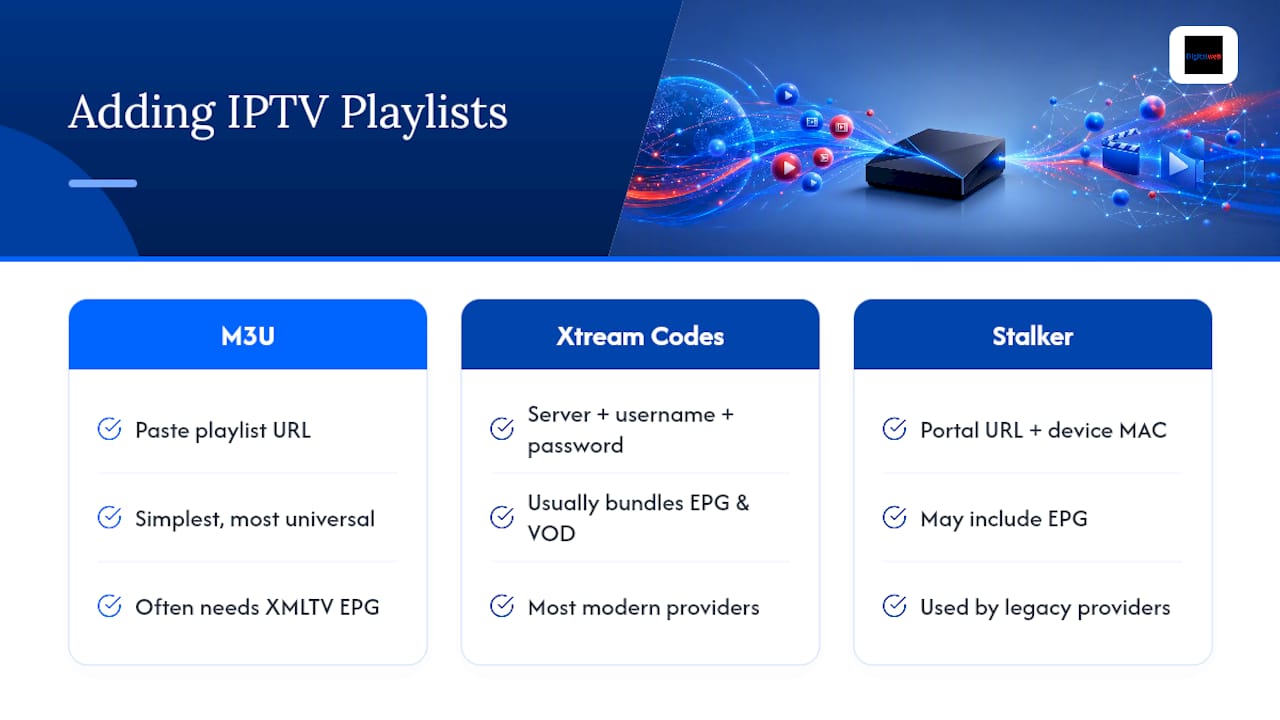
You’ll add your subscription to a player one of three ways: an M3U playlist URL, Xtream Codes API login, or a Stalker portal address. Which one you use depends entirely on what your provider issues you.
M3U is the simplest and most universal format. You paste a URL into the app, it downloads the channel list, and you’re done. Xtream Codes logins use a server address, username, and password instead of a raw URL, and most modern providers issue credentials this way because it also handles EPG and VOD content through the same login. Stalker portals are less common now but still show up with some legacy providers, requiring a portal URL and a MAC address.
In TiviMate, the flow looks like this: open the app, select “Add Playlist,” choose M3U or Xtream Codes, paste your credentials, and let it pull in the channel list. IPTV Smarters and Perfect Player follow nearly identical logic, just with different menu labels.
For EPG, most Xtream-based providers bundle the program guide automatically. If you’re using a plain M3U playlist, you’ll often need a separate XMLTV URL, which your provider should supply on request. When channel names in your EPG don’t match the channel names in your playlist, you’ll get gaps in the guide. That’s a mapping problem, not a broken subscription. Most players let you manually match a channel to its correct EPG entry.
If channels come up empty or the guide won’t populate, double-check for typos in the URL first. Authoritative setup guides consistently recommend testing a playlist on a PC or phone before loading it onto the Shield, since it’s much faster to spot a broken URL on a browser than by guessing through a TV remote.
What DVR and Catch-Up Features Work on Shield?
The Shield TV Pro handles recording well because it has USB ports for external storage. The base Shield TV (Tube) is limited to internal storage, which fills up fast if you’re recording anything beyond a few shows.
For storage, format your drive as exFAT for cross-compatibility, and stick with USB 3.0 SSDs or hard drives for sustained write speeds during long recordings. As a rough guide, a 1TB drive holds around 250 hours of 1080p IPTV at typical streaming bitrates, so even a modest external drive covers a lot of recorded television.
What actually works:
- TiviMate Premium lets you schedule recordings directly from the EPG grid.
- Catch-up/replay works when your provider supports it, but it depends entirely on the provider’s backend, not the app.
- Plex integration lets you archive recordings off the Shield for long-term storage rather than filling up local drives.
What doesn’t work: recording two different channels at the same time. IPTV apps don’t emulate physical tuners, so there’s no hardware equivalent of a dual-tuner DVR box here. One stream, one recording, at a time.
How Do You Get Smooth Playback and Stop Buffering?
Wired Ethernet beats Wi-Fi for IPTV every time, and it’s the single biggest fix for buffering issues. Aim for at least 10 to 25 Mbps per HD stream, and budget considerably more if you’re running 4K or multiple simultaneous streams in the house.
- Plug into the Shield Pro’s gigabit port directly rather than relying on Wi-Fi, even if your Wi-Fi speed test looks fine on paper.
- Set your router’s QoS to prioritize the Shield’s IP address, especially in households with several devices competing for bandwidth.
- If you’re on Tube without an Ethernet adapter, put the Shield as close to the router as possible and avoid 2.4GHz bands entirely.
- Inside TiviMate, enable Auto Frame Rate (AFR) so the Shield matches your TV’s refresh rate to the stream instead of fighting it.
- Turn on hardware decoding where the app offers it. The Tegra X1+ is built for this, and software decoding wastes CPU headroom you don’t need to spend.
- Adjust buffer size upward slightly if you get occasional freezes rather than constant stutter. A larger buffer trades a bit of channel-change latency for a much more stable stream.
Pro Tip: If you suspect your ISP is throttling video traffic, test without a VPN first, then test again with one. A Shield-compatible VPN app can mask traffic from throttling, but encryption overhead itself can introduce lag, so only add one if you can actually confirm throttling is happening, as VPN-focused setup guides for Shield IPTV point out.
Why Do Channels Buffer or Disappear on Shield?
Run through this order when something breaks: check your network first, then test the playlist on a PC, then verify credentials, then restart the app or device, and finally check whether a massive playlist is just choking the app’s load time.
- Buffering: Switch to Ethernet if you’re on Wi-Fi, and check whether your router’s QoS settings are actually prioritizing the Shield.
- Missing channels: Usually a bad M3U file or an EPG mismatch, not a broken subscription. Reload the playlist fresh from the provider’s URL.
- Authentication failures: Check for stray whitespace or a typo in the server URL, username, or password. It’s the single most common cause of login errors.
- Audio out of sync or missing: Enable audio passthrough in Shield’s display and sound settings if your receiver supports it.
- General weirdness: Check for a pending Shield system update, clear the app’s cache under Apps settings, and try a second player app briefly to isolate whether the issue is the app or the playlist itself.
Community threads on Nvidia’s own forums remain a solid source for oddball troubleshooting, especially for Kodi-specific quirks that don’t show up in generic guides.
How Do You Pick a Trustworthy IPTV Provider?
Prioritize providers with transparent terms, a clear refund policy, and specific uptime claims you can actually check, and ask for a short trial before handing over payment for a full subscription.
Ask any provider you’re considering:
- Does the subscription include a working EPG, and how is it delivered?
- Does it support M3U and Xtream Codes login, or only a proprietary app?
- Where are the servers or CDN located, and how does that affect your region’s latency?
- What’s the refund and trial policy in writing, not just verbally promised?
- How many devices and simultaneous streams does the plan actually allow?
- Does the plan support recording, or is that entirely on your own hardware?
Red flags worth walking away from: a service offering unlimited free HD or 4K sports feeds with no catch, no visible refund policy or contact information, insistence on unusual payment methods, or a provider that only works through an obscure sideloaded app with no other login option.
Pro Tip: A provider that’s confident in its service will let you test it before you commit. Treat resistance to a trial period as a bigger warning sign than price.
None of this is legal advice, and IPTV legality depends on the content and how it’s licensed, so check your own local regulations if you’re unsure.
What Makes Shield Hardware Suited to IPTV?
The Tegra X1+ chip is still doing real work in 2026. It handles fast channel switching and AI upscaling without the lag that plagues cheaper Android boxes, and the Shield Pro’s gigabit Ethernet and USB 3.0 ports turn casual streaming into a proper DVR setup.
- Hardware: Tegra X1+ processing plus AI upscaling makes lower-bitrate IPTV streams look noticeably better on a 4K panel.
- Android TV ecosystem: Full Play Store access means IPTV apps get regular updates, and Shield’s security patch cadence beats most budget streaming boxes by a wide margin.
- Ad-free launcher: Unlike a lot of cheap Android boxes bundled by IPTV resellers, Shield’s home screen doesn’t shove ads at you every time you turn it on.
This is also exactly the kind of setup a subscription like Digitalwebb01 is built to pair with. EPG delivery, Xtream Codes login support, and anti-freeze streaming technology all depend on the playback device doing its part, and Shield’s hardware is built to hold up its end.
What Do I Actually Think After Running IPTV on a Shield?
Shield earns its reputation the moment you load a playlist with five hundred channels and it doesn’t choke loading the EPG grid. That’s where cheaper Android boxes fall apart, and it’s the single clearest signal that the hardware matters more than most buying guides admit.
The Pro model’s USB recording is the feature that separates casual users from people running IPTV as a genuine cable replacement. If you’re not recording anything, Tube is fine. If you are, the Pro pays for itself the first time you archive a game you couldn’t watch live.
Shield’s firmware cadence isn’t flashy, but it’s steady, and that consistency is worth more than a splashier remote or a marginally faster chip on a competing box.
Get a Shield-Ready IPTV Subscription With DigitalWeb
Everything covered above works best when it’s paired with a provider built for exactly this kind of setup. Digitalwebb01 delivers over 45,000 live and sports channels in HD, FHD, 4K, and 8K, with a full EPG and anti-freeze streaming technology designed to hold steady even on large multi-playlist setups like the ones TiviMate manages.
Both M3U and Xtream Codes login methods are supported, so whether you’re setting up TiviMate, IPTV Smarters, or Perfect Player, the credentials drop in the same way described earlier in this guide.
Before subscribing, check the full channels list to confirm the sports and entertainment lineup covers what you actually watch, and review the setup page for device-specific instructions once you’ve picked your player app. If you’re on the fence, the refund policy spells out the terms clearly before you commit to a full plan. Pick your player, grab your Shield’s Ethernet cable, and get your credentials added in under ten minutes.
Frequently Asked Questions
Is Nvidia Shield still good for IPTV in 2026?
Yes. The Tegra X1+ chip handles large playlists and fast channel switching well, and the Shield Pro’s USB ports make it one of the few streaming boxes that can actually record IPTV content reliably.
Which IPTV app should I install first on Shield?
Start with TiviMate if you’re managing more than a handful of channels or want a real EPG grid. If you want something simpler, IPTV Smarters Pro is the friendlier option.
Do I need the Shield Pro or is Tube enough?
Tube handles standard IPTV streaming fine. Get the Pro specifically if you want USB recording or gigabit Ethernet for a large household network.
Can I use my own IPTV subscription with Shield apps?
Yes. Nearly every Shield-compatible player accepts M3U playlists or Xtream Codes logins, which is how you connect a provider like Digitalwebb01 to TiviMate, IPTV Smarters, or Perfect Player.
Why does my EPG guide show no program data?
It’s usually a channel-mapping mismatch between your playlist and your EPG source, not a broken subscription. Ask your provider for a direct XMLTV URL if the bundled guide isn’t loading correctly.