

Yes, you can watch IPTV on Roku, and you have four realistic ways to do it: screen mirroring or AirPlay from a phone or computer, a Channel Store IPTV player app, a Developer Mode sideload for a dedicated interface, or a Plex and Threadfin setup for a full home DVR experience. Roku’s operating system is closed, so you can’t drop an Android APK onto it the way you might with a Fire Stick, but that doesn’t lock you out. It just means you pick the method that matches your patience level and your gear.
For most people, the fastest path is screen mirroring or a Channel Store app like MAX IPTV or IPTV Smart Player Lite, both of which let you paste in an M3U playlist or Xtream login and start watching within minutes. If you want a native, dedicated Roku app instead of streaming through your phone every time, Developer Mode sideloading gets you there, though it takes more setup. If you’re building a whole-home IPTV setup across multiple TVs and Roku boxes, Plex with Threadfin is the option that treats your playlist like a real live TV tuner with a proper guide.
Screen mirroring is the quickest way to get IPTV content onto a Roku screen because it needs no app installation on the Roku itself, just a stable Wi-Fi connection and a source device already running your IPTV player.
- Own an iPhone or Android and want it working tonight? Screen mirroring or AirPlay gets you there with almost no setup.
- Want a dedicated Roku app that doesn’t tie up your phone? A Channel Store IPTV player or a Developer Mode sideload fits better.
- Running IPTV across several TVs at home? Plex with Threadfin is built for exactly that.
Key Takeaways
Screen mirroring and Channel Store apps get most Roku users watching IPTV within minutes, while Plex plus Threadfin remains the sturdiest choice for a true whole-home setup.
| Point | Details |
|---|---|
| Fastest start | Screen mirroring or AirPlay works with almost any phone and needs no Roku-side installation. |
| Best native app experience | Channel Store players like MAX IPTV or IPTV Smart Player Lite accept M3U or Xtream credentials directly. |
| Most stable long-term setup | Plex with Threadfin delivers a real program guide and multi-device sync, at the cost of running a home server. |
| Advanced dedicated option | Developer Mode sideloading suits users comfortable with IP addresses who want a persistent unofficial app. |
| Ready-made alternative | Digitalwebb01 pairs a tested M3U playlist with 45,000+ channels and anti-freeze technology so you can skip the manual setup. |
Table of Contents
- Comparing the Ways to Watch IPTV on Roku
- How Do You Screen Mirror IPTV to a Roku Device?
- Which Channel Store Apps Let You Add IPTV on Roku?
- Is Developer Mode Sideloading Worth It on Roku?
- What Is the Plex and Threadfin Workaround for Roku?
- How Do You Fix Common IPTV Streaming Problems on Roku?
- What Are the Legal Rules for IPTV on Roku?
- Which IPTV Method Should You Actually Pick?
- Keeping Your Roku IPTV App Updated
- How Does the Program Guide Work on Roku IPTV Apps?
- Which IPTV Providers Work Best With Roku?
- How Do You Set Up an M3U Playlist on Roku?
- What Network Settings Improve IPTV Streaming on Roku?
- Get a Ready-to-Use IPTV Subscription for Roku
- Sources
Comparing the Ways to Watch IPTV on Roku
Each method trades ease of setup against long-term convenience, and knowing that tradeoff upfront saves you from picking the wrong one and getting frustrated an hour in.
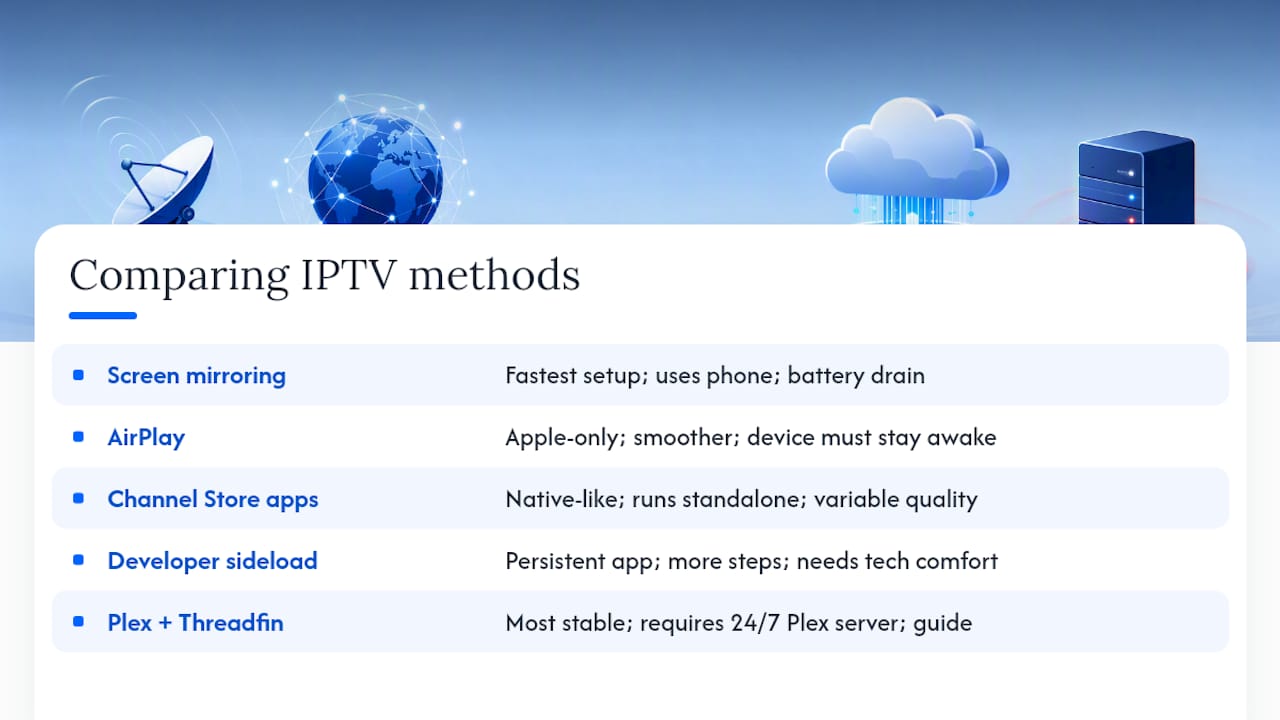
Screen mirroring is the quickest to start. You already own the phone or laptop, you already have the IPTV app installed there, and Roku’s mirroring feature just projects that screen. The catch: your phone becomes the remote control, the source device can’t sleep or lock, and battery drain adds up during a three-hour match.
AirPlay works the same way for Apple hardware, minus a few of mirroring’s quirks, since AirPlay 2 handles the connection more gracefully on most Roku models released after 2020. It still needs your iPhone or Mac awake and connected the whole time.
Channel Store IPTV players are the closest thing Roku has to a native experience. You install a channel like MAX IPTV or Xtream IPTV Player directly from the Channel Store, feed it your M3U link or Xtream credentials, and it runs independent of your phone. The downside is inconsistent quality across these apps and occasional regional availability gaps.
Developer Mode sideloading installs an unofficial private channel package, giving you a persistent, dedicated app without relying on whatever happens to be in the Channel Store. It takes more steps and a bit of technical comfort with IP addresses and file uploads.
Plex plus Threadfin is the deepest setup and the most stable in daily use. It requires a computer or NAS running Plex Media Server around the clock, but it rewards you with a real programming guide and channel surfing that feels like actual cable.
Pro Tip: Try screen mirroring first, even if you plan to end up on Plex or a sideload. It confirms your playlist actually works before you invest an hour into a more complex setup.
How Do You Screen Mirror IPTV to a Roku Device?
Screen mirroring is the fastest on-ramp to watching live TV on Roku, and it works with almost any Android phone or Windows PC that already has an IPTV player installed.
Start on the Roku itself. Head to Settings > System > Screen mirroring and set the mirroring mode to “Prompt” or “Always allow.” Roku recommends a stable connection of roughly 20–30 Mbps for smooth HD playback, so check your speed before you troubleshoot anything else.
- Open your IPTV player app on your Android phone or Windows laptop and load your M3U playlist or Xtream login so you know the content plays correctly on that device first.
- On Android, swipe down for Quick Settings and tap “Cast” or “Smart View,” depending on your phone brand, then select your Roku from the list of available devices.
- On Windows, open the Action Center (Windows key + K), choose “Connect,” and select your Roku device from the discovered devices list.
- Once mirrored, start playback inside your IPTV app as normal. The picture and sound now project through your Roku and TV speakers.
- If the Roku doesn’t appear in the device list, restart both the Roku and your router. Mismatched Wi-Fi bands are the most common culprit.
If you’re on an iPhone, iPad, or Mac, AirPlay is your version of this same trick. Confirm AirPlay is enabled on your Roku (most models from the last several years support it), install your IPTV player on the Apple device, then swipe into Control Center and tap “Screen Mirroring” to select your Roku.
- Keep your phone or laptop on the same Wi-Fi network as the Roku, not a guest network.
- Prefer 5GHz Wi-Fi over 2.4GHz when your router supports both; it handles video streams with far less interference.
- Disable battery-saving mode on your phone during long viewing sessions so the connection doesn’t drop.
Pro Tip: Screen mirroring works with virtually any IPTV app on your phone, which makes it the most flexible option. The tradeoff is that your source device is now busy the entire time you’re watching, so you can’t casually check messages without interrupting the stream.
Which Channel Store Apps Let You Add IPTV on Roku?
Roku’s Channel Store hosts several apps built specifically to play M3U playlists and Xtream Codes logins, and these give you a native experience without needing a second device running the whole time.
These apps generally work the same way: you supply your own playlist from a licensed IPTV provider, and the app handles playback, channel organization, and often an electronic program guide. Some of these Channel Store players support M3U and M3U8 playlist URLs directly, pulling in EPG data automatically once you enter your source. None of them come preloaded with channels. That’s the point. You control what plays through the credentials you enter.
- Search the Roku Channel Store (either on the Roku itself or at channelstore.roku.com) for the app you want to install.
- Add the channel to your Roku, then launch it from the home screen.
- Most apps display an on-screen activation code. Visit the activation portal listed in the app on your phone or computer and enter that code.
- Paste your M3U playlist URL or Xtream Codes username, password, and server address into the portal.
- Return to the Roku app and refresh. Your channel list and guide data should populate within a minute or two.
Here’s a quick rundown of the names you’ll come across most often in the Channel Store:
- IPTV Pro — a straightforward player built around M3U links with basic EPG support and a simple grid layout.
- Xtream IPTV Player — designed specifically around Xtream Codes logins rather than raw M3U files, which suits providers that issue that credential format.
- IPTV Smart Player Lite — accepts M3U/M3U8 URLs and includes program guide support, aimed at users who want something lightweight.
- IPTV Smarters — a widely recognized name in the IPTV space, offering Xtream Codes compatibility and multiscreen features on supported platforms.
- MAX IPTV — supports M3U, Xtream, and Stalker formats with activation handled through its own web portal.
Availability of these apps can shift by region, and none of them supply channels themselves. You need a valid playlist from a licensed IPTV provider before any of this works.
Is Developer Mode Sideloading Worth It on Roku?
Developer Mode sideloading is worth the extra effort if you want a permanent, dedicated IPTV app that doesn’t depend on whatever the Channel Store happens to offer that month, but it’s not for someone who wants to be watching in the next five minutes.
Because Roku’s operating system doesn’t allow direct APK installation the way Android TV boxes do, sideloading here means installing an unofficial private channel package through Roku’s own developer tools rather than a third-party file. It’s a supported feature, just not one Roku promotes for casual use.
- On your Roku remote, press this sequence to open developer options: Home three times, Up twice, then Right, Left, Right, Left, Right.
- Enable the installer when prompted, and set a webserver password. Write this down; you’ll need it again.
- Find your Roku’s IP address under Settings > Network > About.
- Use my.roku.com’s Developer Application Installer to add a channel using a development code, or connect directly to the device’s IP in a browser to upload a package file.
- Once uploaded, the channel appears on your home screen like any other app, ready to accept your playlist credentials.
- Keep your webserver password private. It grants access to install anything on that Roku.
- Understand that any sideloaded channel is unofficial and unsupported by Roku’s own team.
- If you plan to run a VPN for content access, know that Roku has no native VPN app, so you’d need it running on your router or source device instead.
Sideloading makes sense for someone who wants one dedicated, always-there IPTV app and doesn’t mind a slightly technical one-time setup. If that sounds like more hassle than benefit, a Channel Store app gets you 90% of the way there with none of the developer menu gymnastics.
What Is the Plex and Threadfin Workaround for Roku?
Plex plus Threadfin turns your IPTV playlist into something that looks and feels like a real cable box, complete with a proper channel guide, inside the official Plex app that already runs natively on Roku.
The appeal here is stability and integration. Instead of juggling a separate IPTV player app, your channels show up inside Plex’s Live TV & DVR section, synced across every Plex client in your house, including phones, tablets, and other Roku devices. Threadfin acts as the translator, converting your raw M3U or Xtream source into a virtual tuner that Plex recognizes as a legitimate live TV feed.
- Install Plex Media Server on a computer, NAS, or dedicated home server that can stay running continuously.
- Set up Threadfin (or a similar middleware tool) and point it at your M3U or Xtream Codes source.
- Inside Plex’s settings, add a new “Live TV & DVR” source and select the Threadfin tuner you just configured.
- Let Plex scan and match your channels to its guide data, which usually takes a few minutes.
- Open the Plex app on your Roku (already available in the Channel Store) and your IPTV channels appear right alongside any other Plex content.
The data flow looks like this: your IPTV provider issues an M3U or Xtream link, Threadfin converts that into a virtual tuner, Plex registers it as a live TV source, and the Roku Plex app displays it with a full guide.
- Pro: integrated program guide, multi-device sync, and generally more stable playback than standalone Channel Store apps.
- Con: requires a server running around the clock, plus more upfront configuration than any other method here.
- Pro: works across every Roku in your house through one shared setup instead of configuring each device separately.
- Con: troubleshooting spans three separate pieces of software instead of one app.
Pro Tip: If you already own a NAS for photo backups or file storage, you likely have enough spare capacity to run Plex and Threadfin without buying new hardware.
How Do You Fix Common IPTV Streaming Problems on Roku?
Buffering, blank channels, and mismatched program guides almost always trace back to one of four causes: your network, your playlist format, your provider’s login method, or a codec mismatch.
Start with the network. Confirm your Roku and your source device (if you’re mirroring) sit on the same 5GHz Wi-Fi band, not split across a 2.4GHz guest network and a 5GHz main one. Reboot your router if speeds seem inconsistent. For anything approaching 4K or high bitrate content, wired Ethernet paired with Roku firmware 10.0 or newer delivers noticeably steadier playback than Wi-Fi alone.
If a channel doesn’t load at all, the playlist itself is the next suspect. Test the same M3U link in a phone-based IPTV player first. If it fails there too, the problem is your provider, not your Roku setup. Some providers issue Xtream Codes logins rather than a plain M3U file, so double check which format your app expects before assuming the link is broken.
EPG mismatches, where the guide shows wrong times or no data at all, usually mean the XMLTV source needs re-importing or the channel names in your playlist don’t match what the guide expects. Re-syncing the EPG inside your app’s settings menu resolves most of these.
Playback errors on specific channels often come down to codec support. Roku plays MPEG-TS streams natively, but not every container format behaves the same across every Channel Store app. If one player consistently chokes on a channel, try a different Channel Store app or move that source into your Plex and Threadfin setup instead.
When a channel fails to load, work through this order: confirm your internet speed, restart the router, test the playlist on another device, check whether the app needs Xtream login instead of M3U, then try re-importing your EPG data.
- Same Wi-Fi band and subnet for both devices when mirroring.
- Router reboot before deeper troubleshooting.
- Wired Ethernet for any 4K or high-bitrate stream.
- Test playlists outside the Roku app first to isolate the problem.
What Are the Legal Rules for IPTV on Roku?
Only stream content you actually have the rights to watch, and follow the copyright rules that apply where you live. That’s the entire legal question in one sentence, and it applies no matter which method you choose from this guide.
Roku’s own platform policies focus on requiring that channels and content distributed through official and developer tools comply with copyright law, so check Roku’s support and policy pages directly if you want the exact current wording for your situation.
A VPN changes where content appears to originate from, and it can help you avoid ISP throttling on video traffic, but it doesn’t change whether the underlying content is licensed. Running a VPN on unlicensed streams doesn’t make them legal; it just changes your visible location.
- Only use IPTV providers that hold proper licensing for the channels they distribute.
- Treat a VPN as a privacy and throttling tool, not a legal workaround.
- Check Roku’s official support pages for current policy language before sideloading or installing third-party channels.
This article provides general information and isn’t legal advice. Confirm current copyright rules and licensing requirements with a qualified professional or your local authority if you’re uncertain.
Which IPTV Method Should You Actually Pick?
Match the method to the device you already own and how much setup you’re willing to tolerate, and the decision gets a lot simpler.
- Own an iPhone, iPad, or Mac? AirPlay is your fastest route to watching IPTV on the big screen tonight.
- Own an Android phone or Windows PC? Screen mirroring gets you there just as quickly, with the same tradeoff of tying up your device.
- Want a native Roku app you don’t need a phone to run? Install a Channel Store IPTV player like MAX IPTV or IPTV Smart Player Lite.
- Running IPTV across multiple TVs in your house? Build out Plex with Threadfin once, and every Roku in the house benefits.
- Comfortable with IP addresses and developer menus, and want a persistent dedicated app? Developer Mode sideloading is worth the extra half hour.
Most readers should start with screen mirroring or a Channel Store app. Both get you watching within minutes, and you can always graduate to Plex or a sideload later once you know your playlist and provider are solid. For the exact steps behind each option, the sections above walk through setup, activation codes, and troubleshooting in order.
Keeping Your Roku IPTV App Updated
Roku Channel Store apps update automatically by default, but IPTV players specifically benefit from a manual check every so often since playlist parsing and EPG features change more frequently than typical streaming apps.
Go to Settings > System > System update to confirm your Roku’s own firmware is current, since older firmware versions sometimes struggle with newer stream formats. For the IPTV app itself, Roku normally pushes updates in the background, but you can force a check by removing and reinstalling the channel from the Channel Store if you notice odd behavior like channels disappearing or the guide failing to load.
If you’re running a sideloaded Developer Mode channel, updates work differently. You’ll need to re-upload the package manually through the developer web interface whenever a new version is released, since Roku doesn’t push automatic updates to unofficial channels.
For Plex, keep both the Plex Media Server software and Threadfin updated on whatever machine hosts them. An outdated Threadfin build is a common, overlooked cause of channels quietly dropping out of your guide over time.
How Does the Program Guide Work on Roku IPTV Apps?
The Electronic Program Guide, or EPG, is what turns a bare list of channel names into an actual schedule with show titles, times, and descriptions, and getting it working correctly makes the difference between a usable app and a frustrating one.
Most Channel Store IPTV players pull EPG data from an XMLTV source that your provider supplies alongside your M3U playlist. When you enter your credentials during activation, the app typically asks for this XMLTV URL separately from the playlist link itself. If your guide shows blank rows or the wrong programming, check that this XMLTV address is entered correctly and that it hasn’t expired, since some providers rotate these links periodically.
Channel name matching is the other common failure point. The EPG data identifies channels by name or ID, and if your playlist labels a channel differently than the guide data expects, that row shows up empty even though the stream itself plays fine. Most apps let you manually remap a channel to its correct guide entry from a settings or channel management screen. It’s a small manual fix, but it solves the majority of “guide looks wrong” complaints.
Plex handles this more elegantly. Because Threadfin registers your playlist as a proper tuner, Plex automatically pulls in guide data during its channel scan and handles the matching itself, which is a big part of why the Plex plus Threadfin route feels more like real cable television.
Which IPTV Providers Work Best With Roku?
The provider matters more than the app you install, since even the best Channel Store player is only as good as the playlist feeding it. Look for a provider offering stable server infrastructure, a large and current channel lineup, and support for the M3U or Xtream Codes format your chosen Roku app expects.
Digitalwebb01 fits that description directly, with more than 45,000 live and sports channels available in HD, FHD, 4K, and 8K, built specifically to work across Roku and every other major streaming device. Its anti-freeze streaming technology addresses the buffering complaints that plague a lot of budget IPTV providers, and a 99.9% uptime target means you’re not left staring at a loading spinner during a big match.
Whichever provider you choose, confirm three things before subscribing: a working EPG feed, a format compatible with your Roku app of choice (M3U versus Xtream Codes), and responsive support if a channel drops out. Providers that skimp on any of these three tend to generate the exact buffering and guide problems covered in the troubleshooting section above.
How Do You Set Up an M3U Playlist on Roku?
An M3U playlist is a plain text file containing links to your IPTV channels, and setting it up correctly the first time avoids most of the headaches covered earlier in this guide.
- Get your M3U playlist URL from your IPTV provider. It typically looks something like
http://provider-server.com/playlist.m3u8?username=youruser&password=yourpass. - Open your Channel Store IPTV app and navigate to its playlist or account settings screen.
- Paste the full M3U URL exactly as provided, including any query parameters after the question mark.
- If your provider issues Xtream Codes instead, you’ll enter a server address, username, and password in separate fields rather than one combined URL.
- Save and let the app load the playlist. This can take anywhere from a few seconds to a couple of minutes depending on how many channels the list contains.
- If channels appear but the guide doesn’t, return to your account settings and enter the separate XMLTV or EPG URL if your provider offers one.
A working example structure looks like this: your provider gives you a base URL, a username, and a password, and the app combines those three into one playlist request every time it refreshes. If you ever change providers, you’ll repeat this exact process with the new credentials rather than editing the old ones.
What Network Settings Improve IPTV Streaming on Roku?
Your router configuration affects IPTV streaming more than almost anything else in this guide, since even the best app and the most reliable provider can’t compensate for a weak connection.
Switch your Roku to the 5GHz band whenever your router supports dual-band Wi-Fi. It carries less interference from neighboring networks and household devices like microwaves and older cordless phones. If your Roku sits far from the router, a wired Ethernet adapter solves range issues entirely and delivers the steadiest results for high-bitrate or 4K content.
Check for other devices competing for bandwidth during your viewing window. A household running simultaneous 4K downloads, video calls, and cloud backups can starve your IPTV stream even on a fast connection. Quality of Service (QoS) settings, available on most modern routers, let you prioritize your Roku’s traffic over less time-sensitive devices.
Finally, restart your router periodically. Consumer routers accumulate memory bloat over days of continuous uptime, and a simple reboot every week or two often clears up subtle slowdowns before they become full buffering problems.
A Practical Take on Choosing Your Method
Screen mirroring wins on speed, and that’s exactly why I’d tell most people to start there before investing time anywhere else. It confirms your playlist and provider actually work in under five minutes, with zero commitment. But if you’re the type who watches sports every weekend and hates fiddling with a phone connection mid-game, the Plex and Threadfin route earns its extra setup time back within the first month. It’s the only method here that behaves like it wasn’t cobbled together.
If you’re chasing 4K sports broadcasts specifically, don’t cheap out on hardware. A Roku Ultra paired with wired Ethernet handles high-bitrate streams far more gracefully than an entry-level Roku stick on Wi-Fi, and if you’re still seeing dropped frames after trying every fix in the troubleshooting section, that’s usually your cue to contact your provider’s support team rather than keep tweaking settings on your end.
Get a Ready-to-Use IPTV Subscription for Roku
Setting up your own M3U link, fixing EPG mismatches, and hunting down which Channel Store app plays nicest with your provider takes time. Digitalwebb01 skips that trial-and-error entirely by pairing a tested playlist with a subscription built specifically to work across Roku and every other major device.
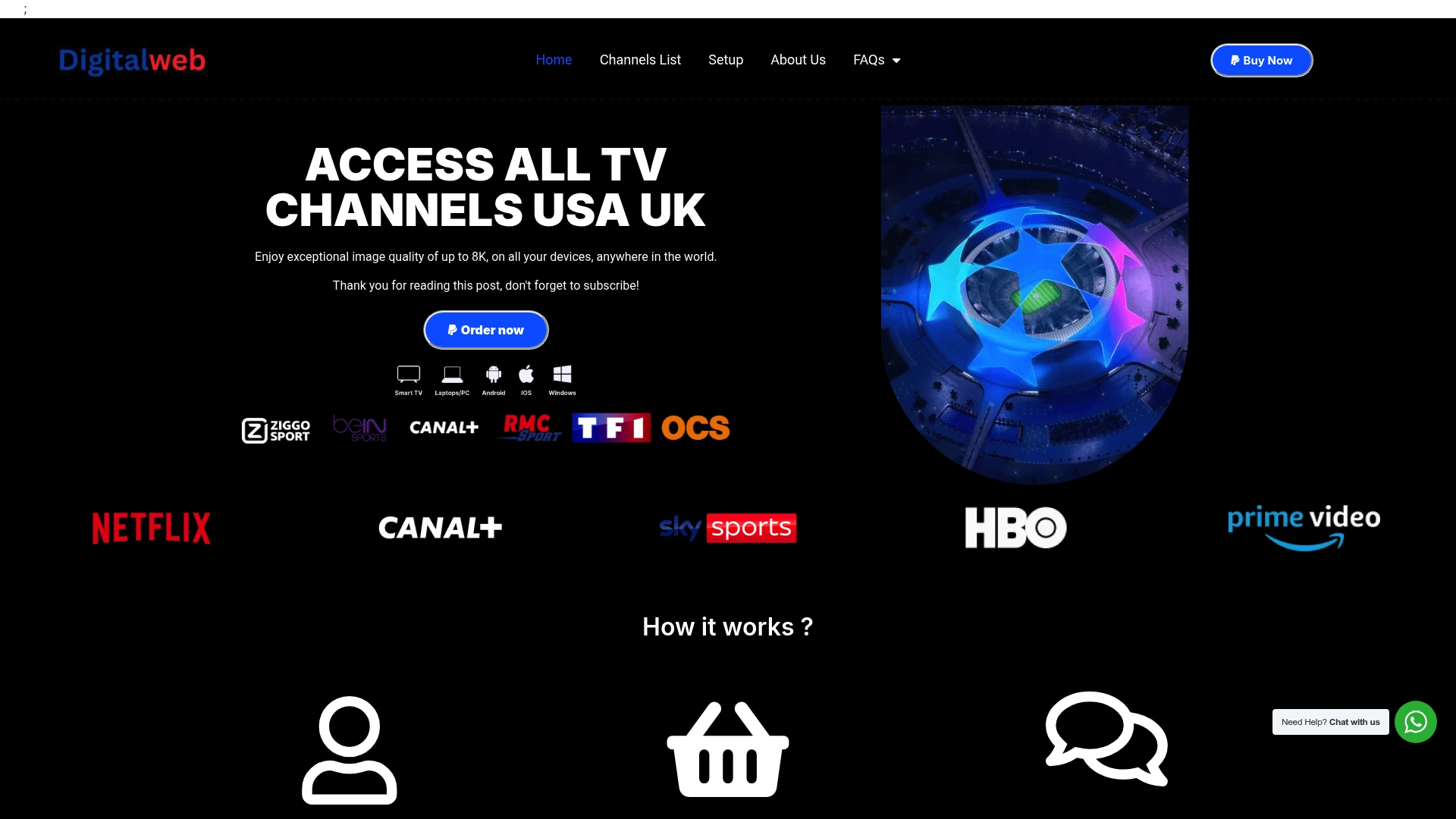
The subscription gives you more than 45,000 live and sports channels in HD, FHD, 4K, and 8K, backed by anti-freeze streaming technology so a buffering wheel doesn’t ruin the final minutes of a match. A few reasons Roku users pick it over building their own setup from scratch:
- Over 45,000 live channels plus 70,000+ movies and series in one subscription.
- Anti-freeze technology built to handle high-bitrate 4K and sports streaming.
- 99.9% uptime with support available seven days a week if a channel misbehaves.
If you’ve read through the Channel Store or Plex sections above and would rather skip the manual playlist hunting, check the full channel lineup and follow the Roku setup walkthrough to get your subscription running today.
Sources
- IPTV Smart Player Lite
- MAX IPTV for Roku | MAX IPTV
- How to Watch IPTV on Roku March 2026
- How To Install IPTV On Roku (2026 Step-by-Step Guide)