
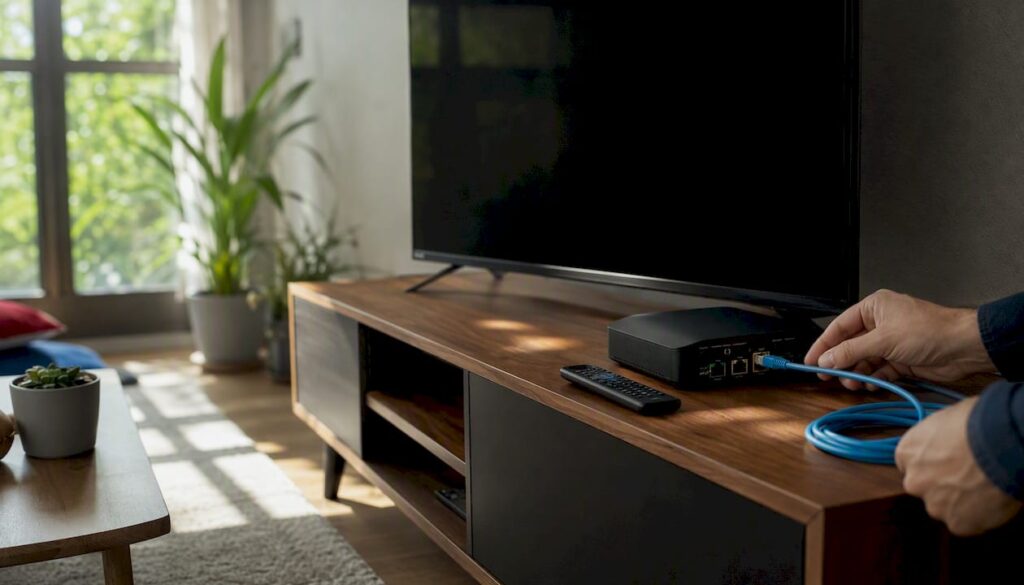
4K IPTV means two things working together: a player app capable of decoding 4K video, and a provider actually sending true 4K streams down the pipe. Miss either half and you get a smart TV app playing upscaled 1080p that just looks sharper on the box.
The fastest safe path to real 4K playback today: install a 4K-capable player on your device, add a verified 4K playlist or subscribe to a plan that explicitly lists 4K channels, then run a single test stream before you commit to anything long term.
Before you go further, run these three checks:
- Device check: does your player or TV app support HEVC/H.265 hardware decoding, not just software playback?
- Bandwidth check: can your connection sustain a stable 25 to 40 Mbps to that one device, not your whole household total?
- Display check: is your HDMI cable and port rated for the resolution and frame rate you’re expecting, and is HDCP compliance sorted on both ends?
Get those three right and you’ve eliminated the most common reasons 4K IPTV underperforms.
Key Takeaways
Genuine 4K IPTV playback depends on pairing a hardware-decode-capable player with a provider that delivers verified, true 4K streams over a stable, sufficiently fast connection.
| Point | Details |
|---|---|
| Player and provider are separate | The app decodes and displays; the provider supplies the actual stream and rights to the content. |
| Hardware decode is the bottleneck | HEVC hardware support on your device often matters more than raw bandwidth. |
| Test before you commit | Request a verified 4K sample stream and check its real bitrate before subscribing to any plan. |
| Wired beats Wi-Fi for testing | Rule out network congestion by testing 4K playback over Ethernet first. |
| DigitalWeb fits the checklist | It offers 45,000+ channels with 4K/8K options, anti-freeze technology, and a stated 99.9% uptime figure. |
This article is general information, not a substitute for advice from a qualified lawyer. Consult a qualified legal professional about your own circumstances before acting on anything here.
Table of Contents
- What Does 4K IPTV Actually Mean?
- Which Devices Actually Support Genuine 4K Playback?
- What Does True 4K Playback Actually Require?
- How Do You Set Up a 4K IPTV Player Step by Step?
- Why Is My 4K IPTV Buffering or Freezing?
- Is IPTV Legal in the UK?
- How Much Does 4K IPTV Typically Cost?
- How Do You Choose a Trustworthy 4K IPTV Provider?
- DigitalWeb: A Vetted Option for 4K Streaming
- When Is Upgrading to 4K IPTV Actually Worth It?
- What Should You Check Before Subscribing to 4K IPTV?
- Where Can You Verify These Claims and Find Apps?
- Ready to Test Real 4K Streaming?
- Sources
What Does 4K IPTV Actually Mean?
A player decodes and renders whatever gets sent to it. A provider is the one sending it. That distinction resolves almost every piece of confusion around “4K IPTV” as a search term, because the phrase gets used for both halves interchangeably.
Apps like IPTV 4K on Roku are explicit about this split. The listing states plainly that the app is a media player supporting multiple playlists, catchup, and 4K-ready playback, and that it does not include channels. You bring your own playlist, typically in M3U or M3U8 format, from a separate provider.
Player app responsibilities usually include:
- Decoding and rendering the video stream at the correct resolution
- Building and displaying the electronic program guide (EPG)
- Managing multiple playlists, subtitles, and audio tracks
- Offering parental controls and catchup/replay features
Provider responsibilities usually include:
- Actually encoding and delivering the live streams
- Maintaining server uptime and anti-freeze technology during peak load
- Holding or claiming the rights to distribute the content
- Providing customer support when a stream drops or a channel goes dark
Activation between the two typically happens one of four ways: pasting an M3U/M3U8 URL directly into the player, entering a username and password the provider issues, entering a MAC address tied to your device, or typing in an activation code. Each method achieves the same result. The player just needs to know where to pull the stream list from.
Pro Tip: If your smart TV already has a solid native IPTV app, don’t automatically install a third-party player on top of it. Test the built-in app first with a sample stream. Dedicated players earn their place when you need multi-playlist switching, better EPG customization, or catchup features the native app lacks.
Which Devices Actually Support Genuine 4K Playback?
Native 4K needs three things lining up at once: hardware decode support in the device, a player app that exposes that decode path, and enough HDMI bandwidth between the box and the TV to carry the signal without the chain quietly downscaling it.
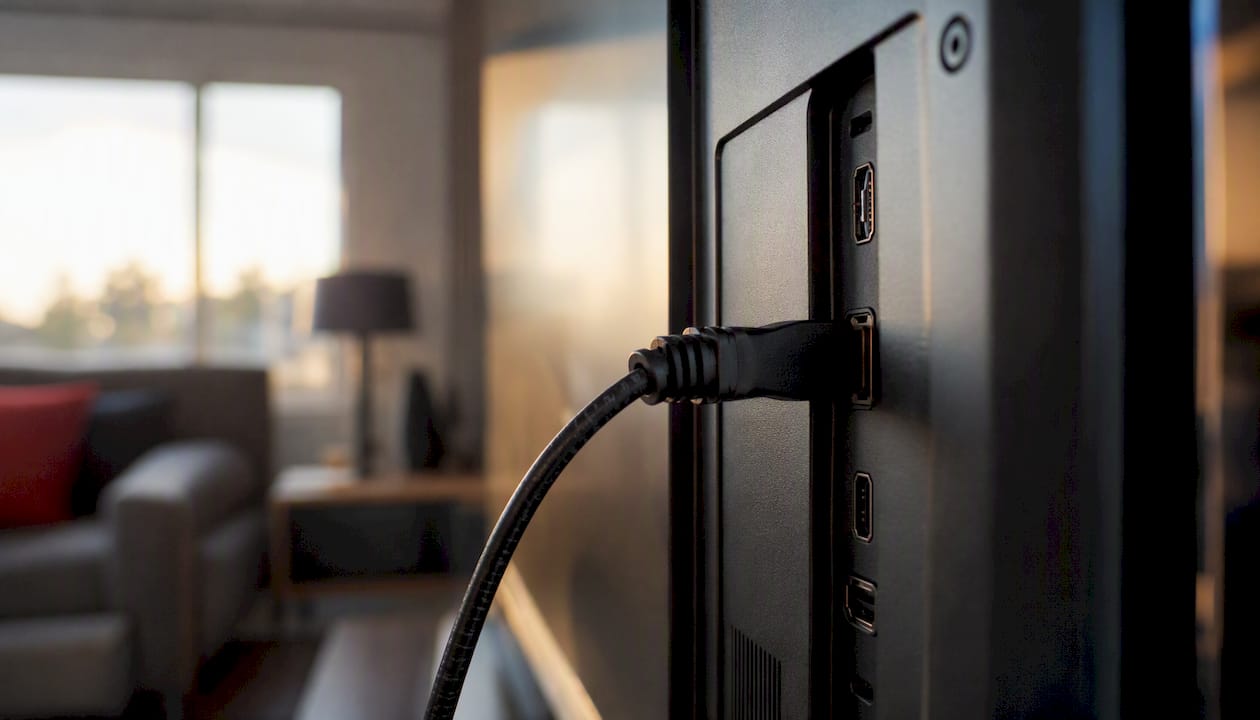
Platform support varies more than most buying guides admit. Samsung’s Tizen and LG’s webOS both allow third-party IPTV apps through HTML5 and native playback frameworks, though Samsung’s own app documentation shows the capability differs by TV model year. Android TV and Fire TV generally offer the widest player selection, since both run a fuller Android app ecosystem. Apple TV 4K has narrower app choices but tighter hardware optimization. Roku sits somewhere in between. Windows can run 4K IPTV clients too, with IPTV 4K’s own Windows build confirming cross-platform availability beyond the smart TV space.
Here’s how the major platforms stack up on the features that actually matter for 4K streaming:
When you’re inspecting any player, whatever the platform, check for these five things before you trust it with a paid subscription:
- Multi-playlist support, so you can run more than one provider or backup source
- A genuinely accurate EPG that updates on schedule, not a static guide from setup day
- Catchup or replay windows if you watch on a delay
- Subtitle and multiple audio track handling
- Hardware acceleration flagged specifically for HEVC, since that’s the codec doing most of the heavy lifting in 4K streams
Apple’s App Store listing for Pure is a useful reference point here. It lists full M3U/M3U8 support, Apple TV 4K optimization, EPG, multi-audio and subtitle handling, and cloud playlist sync across devices, which shows what a fully-featured modern 4K player app now looks like as a baseline, not an upgrade.
What Does True 4K Playback Actually Require?
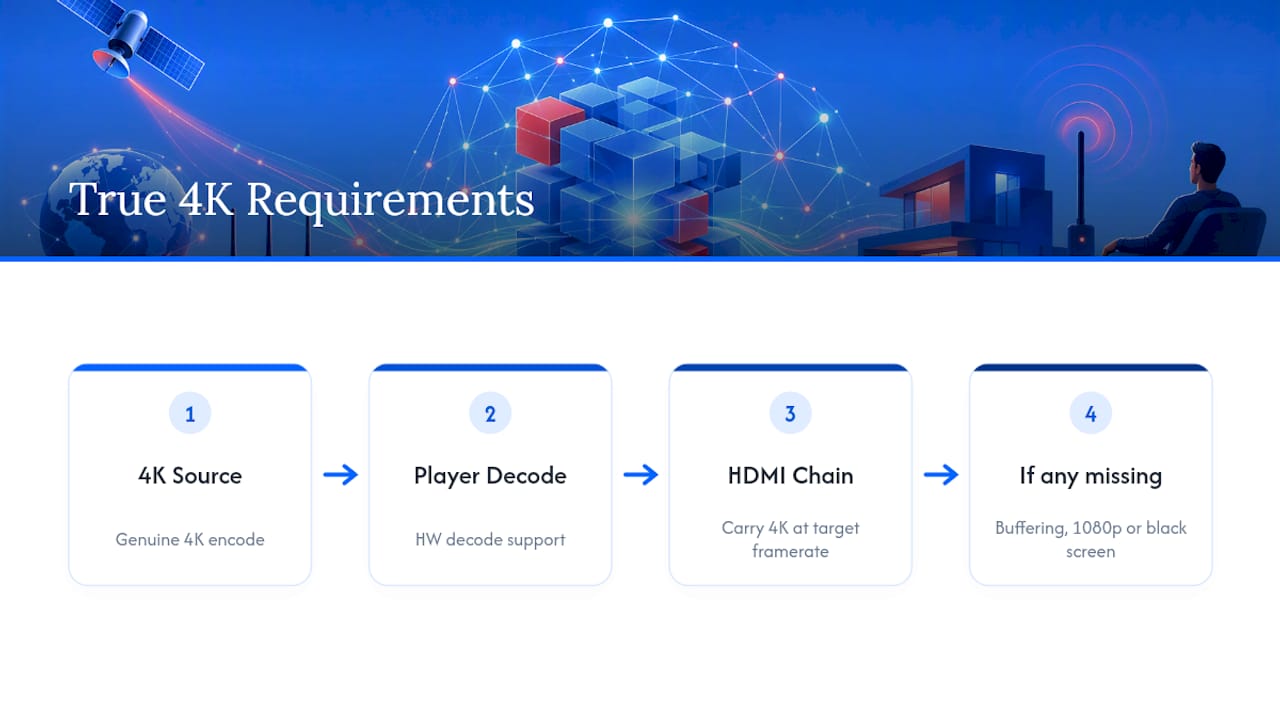
Three things need to align simultaneously: a source stream genuinely encoded in 4K, a player with hardware decode support for whatever codec that stream uses, and an HDMI chain that can carry 4K at your target frame rate without HDCP handshakes failing along the way. Miss any one of the three and you get buffering, a silent downscale to 1080p, or a black screen with no obvious explanation.
Bandwidth. A single stable 4K stream typically needs somewhere in the 25 to 40 Mbps range, depending on the encoding efficiency. Run two or three simultaneous 4K streams in the same household, and that requirement roughly multiplies per stream. Most UK home connections can technically hit this on paper, but Wi-Fi congestion and router quality eat into the margin fast. This is the single most underestimated cause of “4K that isn’t.”
Codec and hardware decode. HEVC/H.265 is the current standard for efficient 4K delivery, with VP9 and AV1 appearing on newer devices and services. The catch: hardware decode support has to actually exist on the chip inside your streaming box or TV. Software decoding a 4K HEVC stream on underpowered hardware either drops frames or won’t play at all, regardless of how fast your internet connection is.
HDMI and display chain. HDMI 2.0 handles 4K at 60Hz; older HDMI 1.4 ports cap out lower and will silently limit your resolution without an error message. HDCP version mismatches between your streaming device and TV can also block 4K content outright, particularly on older TVs paired with a newer streaming stick. Check your TV’s picture settings too. Some sets default to a “PC mode” or aggressive sharpening filter that actually works against a clean 4K signal.
Reliability on the provider side matters just as much as the technical chain on your end. DigitalWeb’s own service claims 99.9% uptime alongside anti-freeze streaming technology, and that combination is exactly what prevents a technically-perfect setup on your end from getting undercut by server congestion during a big match or a premium event.
Pro Tip: Turn off automatic resolution switching in your player’s settings while testing. Force the stream to 4K manually. If it holds without stuttering, your chain is solid. If it drops back to 1080p on its own, that’s your player quietly protecting you from a connection that can’t sustain 4K yet.
How Do You Set Up a 4K IPTV Player Step by Step?
Install the player on your device, get the playlist or login credentials from your provider, then activate through whichever method they support. That’s the entire flow in one sentence. Here’s how it breaks down in practice.
- Install the player app on your chosen device, whether that’s a Fire TV Stick, an Android TV box, an Apple TV, or a native smart TV app store.
- Open the add playlist or add source menu, usually found in settings or a dedicated “playlists” tab.
- Choose your activation method: paste an M3U/M3U8 URL directly, enter a username and password, input your device’s MAC address if the provider uses that model, or type in an activation code.
- Load a sample 4K stream immediately after activation, before assuming everything works.
- Check the on-screen resolution indicator most players display, and adjust playback settings if the stream isn’t defaulting to 4K.
- Lock in your preferred EPG and subtitle settings once you’ve confirmed the stream itself is stable.
Platform quirks matter here. Apple TV tends to restrict sideloading, so you’re generally working within the App Store’s approved players like Pure, which handles 4K optimization and cloud playlist sync specifically for Apple hardware. Android TV and Fire TV are more permissive, letting you install a wider range of third-party APKs, including options like the 4K Live IPTV Player available on Google Play. Native smart TV apps on Samsung and LG sit in between, restricted to whatever’s approved in their respective app stores but still generally supporting standard M3U activation.
Pro Tip: Don’t trust the channel name alone to confirm 4K. Open the player’s stream info overlay (most have one, often accessible by pressing info or a similar remote button) and check the actual bitrate and resolution being reported. A channel labeled “4K” running at 8 Mbps is not delivering real 4K, no matter what the guide says.
Why Is My 4K IPTV Buffering or Freezing?
Check your network first, then your device settings, then look at whether the issue sits on the provider’s side. That order matters because network issues cause the overwhelming majority of buffering complaints, and they’re the fastest to rule out.
Start with these, in order of how easy they are to test:
- Switch from Wi-Fi to a wired Ethernet connection for the streaming device, even temporarily, to isolate whether Wi-Fi congestion is the culprit
- Check your router’s Quality of Service (QoS) settings and prioritize the streaming device if your router supports it
- Restart the streaming device and the router, not just one or the other
- Test the same stream on a different app or player to isolate whether the issue is app-specific
- Inspect your HDMI cable, particularly if you’re seeing a resolution drop rather than buffering, since a damaged or underspecced cable is a common silent cause
- Toggle hardware HEVC decoding off and back on in the player’s settings if that option exists, since a corrupted decode session can sometimes get stuck
If the checks above don’t fix it, the issue is likely provider-side. Signs of this include:
- Buffering that happens specifically during high-demand events, like a major sports fixture, suggesting server congestion rather than your own connection
- The same channel failing across multiple devices on your network simultaneously
- A provider’s own status page or support channel reporting known outages
When you contact support, ask specifically whether anti-freeze routing is active on that channel and whether server load balancing has kicked in. A provider that can answer that question specifically, rather than giving a generic “try restarting” response, is one that actually monitors its own infrastructure.
Is IPTV Legal in the UK?
IPTV technology itself is completely legal. What determines legality is whether the streams being distributed are properly licensed. A provider with legitimate rights agreements or direct carriage deals for the channels it distributes is operating legally. A service redistributing content it has no rights to is not, regardless of how professional the app or website looks.
This puts the responsibility partly on you as the subscriber to check for transparency. Look for clear terms of service, a defined refund policy, and a provider that doesn’t make vague claims about “all channels” without specifying what it’s actually authorized to carry.
The clearest signal of a provider worth trusting isn’t its channel count. It’s whether the provider is upfront about uptime, refunds, and support before you’ve handed over any payment details, not after something breaks.
Before subscribing to any 4K IPTV service, check for:
- A clearly stated refund policy with actual timeframes, not vague language
- Visible uptime claims the provider is willing to put in writing
- Verifiable payment methods, not requests for unusual payment types like gift cards
- Active support channels you can test with a question before you pay
- A clear statement that the service doesn’t host pirated content itself
On privacy, a VPN can add a layer of protection for your traffic and location data when streaming, but treat that as a privacy tool, not a legal shield. A VPN doesn’t change whether a stream is licensed; it just changes what your ISP can see about your traffic.
Pro Tip: Read a provider’s terms of service before you subscribe, not after a dispute. Look specifically for language about content rights and refund windows. DigitalWeb’s terms spell out exactly what subscribers are responsible for, which is the standard every provider should be held to.
How Much Does 4K IPTV Typically Cost?
4K costs more than standard-definition IPTV mainly because of bandwidth demands and limited true-4K content supply. Providers pay more to encode, deliver, and maintain servers capable of sustaining 4K streams without buffering under load, and that cost tends to show up as a higher subscription tier or a separate 4K add-on.
The biggest price drivers you’ll actually encounter:
- Number of simultaneous streams allowed under one subscription
- Whether genuine 4K channels are included as standard or sold as an add-on package
- Access to pay-per-view (PPV) sports and events, which typically command a premium
- Server infrastructure quality, including anti-freeze technology during peak demand
- Regional content availability and any licensing restrictions tied to your location
- Whether the provider offers a trial period or a real refund window if the service doesn’t meet expectations
Pricing structures generally fall into a few shapes: flat monthly or annual subscriptions covering a full channel bundle including 4K, tiered plans where 4K is an upgrade over a base HD package, or reseller pricing where a middle party resells access at a markup. Expect true 4K-inclusive plans to sit noticeably higher than basic HD-only packages, since you’re paying for both the content rights and the server capacity to deliver it without degradation.
Watch refund and uptime promises closely here too. A provider advertising 4K but offering no trial and a vague or nonexistent refund policy is asking you to take on all the risk. DigitalWeb’s refund policy is worth reading as an example of what a subscriber-friendly policy actually spells out, including timeframes and conditions.
How Do You Choose a Trustworthy 4K IPTV Provider?
Prioritize device compatibility, a verified 4K sample stream, a clear refund policy, responsive support, and a stated uptime figure. Those five things separate providers worth paying for from ones that will leave you troubleshooting alone.
Must-have checklist before you commit:
- Confirmed compatibility with your specific device (not just “works on all devices” as a blanket claim)
- A real sample stream you can test in 4K before paying for a full subscription
- A written refund policy with actual timeframes
- Support available across multiple days of the week, not just business hours
- A stated uptime percentage the provider is willing to put on its own website
Nice-to-have features that separate good providers from great ones:
- Anti-freeze technology specifically mentioned as active infrastructure, not just marketing language
- Multiple simultaneous stream allowances if your household has more than one viewer
- Regular content updates and channel additions logged somewhere visible
- An EPG that’s actively maintained rather than static
Questions worth asking any provider directly before you subscribe:
- Can you provide a verified 4K sample stream before I pay?
- What codec and typical bitrate does the 4K content run at?
- How many simultaneous streams does one subscription allow?
- What’s your refund policy, in writing, including the exact timeframe?
- How is activation performed, and is support available if it fails?
- What’s your stated uptime, and how is that measured?
- Do you offer anti-freeze or load-balancing during high-demand events?
- What devices and platforms have you tested and confirmed compatibility with?
If a provider hesitates or gives vague answers to more than one or two of these, treat that as a signal to test with a short trial rather than committing to a longer subscription upfront. A provider confident in its own infrastructure will usually answer all eight without friction.
DigitalWeb: A Vetted Option for 4K Streaming
DigitalWeb is built specifically around the technical requirements that make or break 4K IPTV: anti-freeze streaming technology, broad device support, and infrastructure sized for genuine 4K and even 8K delivery, not just marketing language attached to a standard HD service.
The service provides access to a very large number of live TV and sports channels alongside an extensive library of movies and series, spanning HD, FHD, 4K, and 8K quality depending on the content. DigitalWeb states a 99.9% uptime figure, backed by its anti-freeze technology designed to hold streams stable during high-demand moments like major sporting events. The service includes a full EPG, PPV event access, and technical support available seven days a week, which matters more than it sounds once you’ve dealt with a provider that only answers during weekday business hours.
Before trusting any 4K claim, verify it yourself. Here’s how to do that with DigitalWeb:
- Check the full channels list to confirm the specific 4K sports and entertainment channels you actually watch are included
- Read the refund policy so you know your protections upfront, not after a problem arises
Pro Tip: When you start a trial with any provider, including DigitalWeb, don’t just check one channel. Load a genuine 4K sports channel during a live event and a 4K movie stream back to back. Sports content is high-motion and taxes your bandwidth and decode chain far harder than a slower-paced film, so it’s the better stress test.
When Is Upgrading to 4K IPTV Actually Worth It?
4K IPTV earns its keep when three things line up: you own an actual 4K television, your connection can sustain the bandwidth reliably, and you regularly watch content where the extra resolution is visible, meaning sports, nature documentaries, and film with a lot of fine detail and motion.
Live sports is where 4K makes the most obvious difference. Grass texture on a football pitch, the seam on a cricket ball, the fine detail in stadium crowds. All of that separates cleanly at 4K in a way it doesn’t at 1080p, and it’s precisely the kind of high-motion content that punishes a weak decode chain or a congested connection the hardest. If you’re watching mostly on a 32-inch bedroom TV or casually flipping between channels on a phone, the resolution gain becomes nearly invisible, and you’re paying a bandwidth and cost premium for something you won’t perceive.
Wait on the upgrade if your household bandwidth is already stretched across multiple streaming services and devices, if you mostly watch on a smaller screen, or if your viewing habit is background television rather than focused viewing. The math only works in your favor when the hardware, the connection, and the viewing habit all point the same direction at once.
What Should You Check Before Subscribing to 4K IPTV?
The strongest 4K IPTV setup pairs a hardware-decode-capable player with a provider offering verified 4K sample streams, transparent refund terms, and stated uptime, tested over a wired connection before you commit to a subscription.
| Point | Details |
|---|---|
| Separate player from provider | Confirm whether you’re evaluating the app’s playback quality or the provider’s stream quality before judging either. |
| Verify hardware decode support | Check your device supports HEVC hardware decoding before assuming poor playback is the provider’s fault. |
| Test on wired Ethernet | Rule out Wi-Fi congestion by testing a 4K stream over a wired connection before troubleshooting further. |
| Request a real sample stream | Ask any provider for a verified 4K test channel and check its actual bitrate before subscribing. |
| Review refund and uptime terms | Choose a provider like DigitalWeb that states a specific uptime figure and a clear, written refund policy. |
- Confirm your device and TV support hardware HEVC decode and a compliant HDMI/HDCP chain
- Run a speed test on the actual device you’ll stream from, not just your router
- Request a verified 4K sample stream from any provider before paying for a full plan
- Test that sample over wired Ethernet first, then move to Wi-Fi if that’s your normal setup
- Read the refund and support terms in full before your trial period ends
If you’re ready to move past testing and into a real setup, DigitalWeb’s setup page walks through activation on every major platform.
Where Can You Verify These Claims and Find Apps?
Platform-level claims about device support and player features throughout this guide come from primary app listings rather than secondhand reviews, and it’s worth checking these directly if you’re deciding between apps.
- Roku Channel Store: IPTV 4K for confirming Roku-specific player features and the player-versus-content distinction
- Microsoft Store: IPTV 4K for the Windows client download and feature listing
- Google Play: 4K Live IPTV Player for Android and Android TV installation
- DigitalWeb’s channels list for verifying specific 4K channel availability before subscribing
Ready to Test Real 4K Streaming?
If you’ve worked through the technical checklist above and confirmed your device and connection can actually handle native 4K, the next step is finding a provider that won’t waste that setup on weak streams. DigitalWeb gives you access to over 45,000 live and sports channels plus 70,000+ movies and series across HD, FHD, 4K, and 8K, backed by anti-freeze streaming technology that keeps quality stable when a big match or premium event pushes server demand to its peak.
Setup doesn’t require networking expertise either. The installation process is built to work across Samsung, LG, Android TV, Fire TV, Apple TV, and Windows without a manual command line step in sight.
Start by checking the full channels list for the specific 4K sports and entertainment content you actually want, then head to the setup page to activate on your device and load a real 4K sample stream today.
Sources
- Pure: M3U 4K IPTV Player App – App Store